How do I get the most out of an active Skill?
Last updated: May 25, 2026
Practising a Skill goes beyond pressing Start. Here are the six things you can do once a Skill is active.
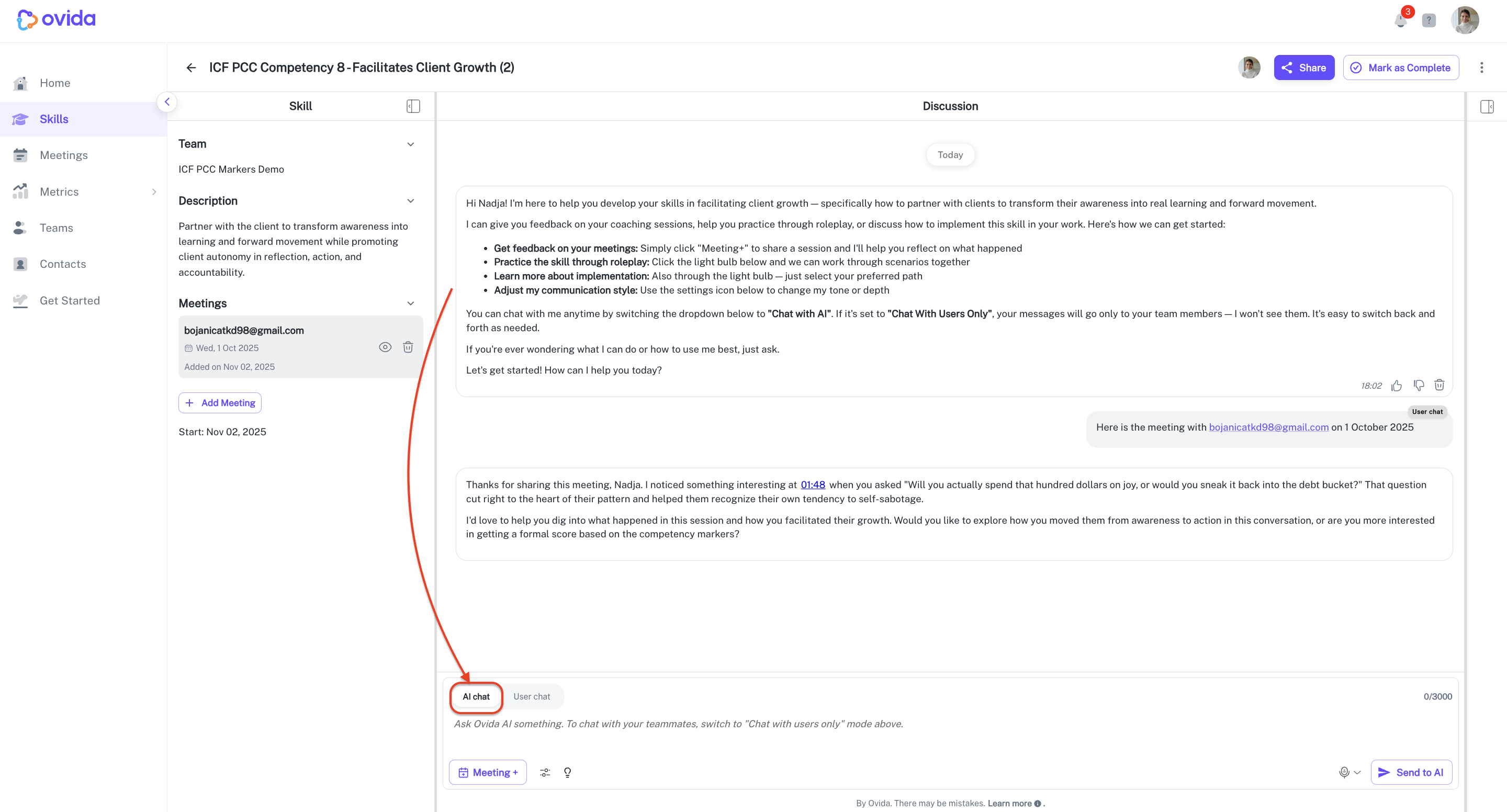
1. Reflect on real conversations
Once you start a Skill, Ovid (Ovida's AI) steps in as your communication coach. You can share a meeting recording and have a focused conversation about how you demonstrated the skill — or didn't — in that interaction.
2. Comment and collaborate with your team
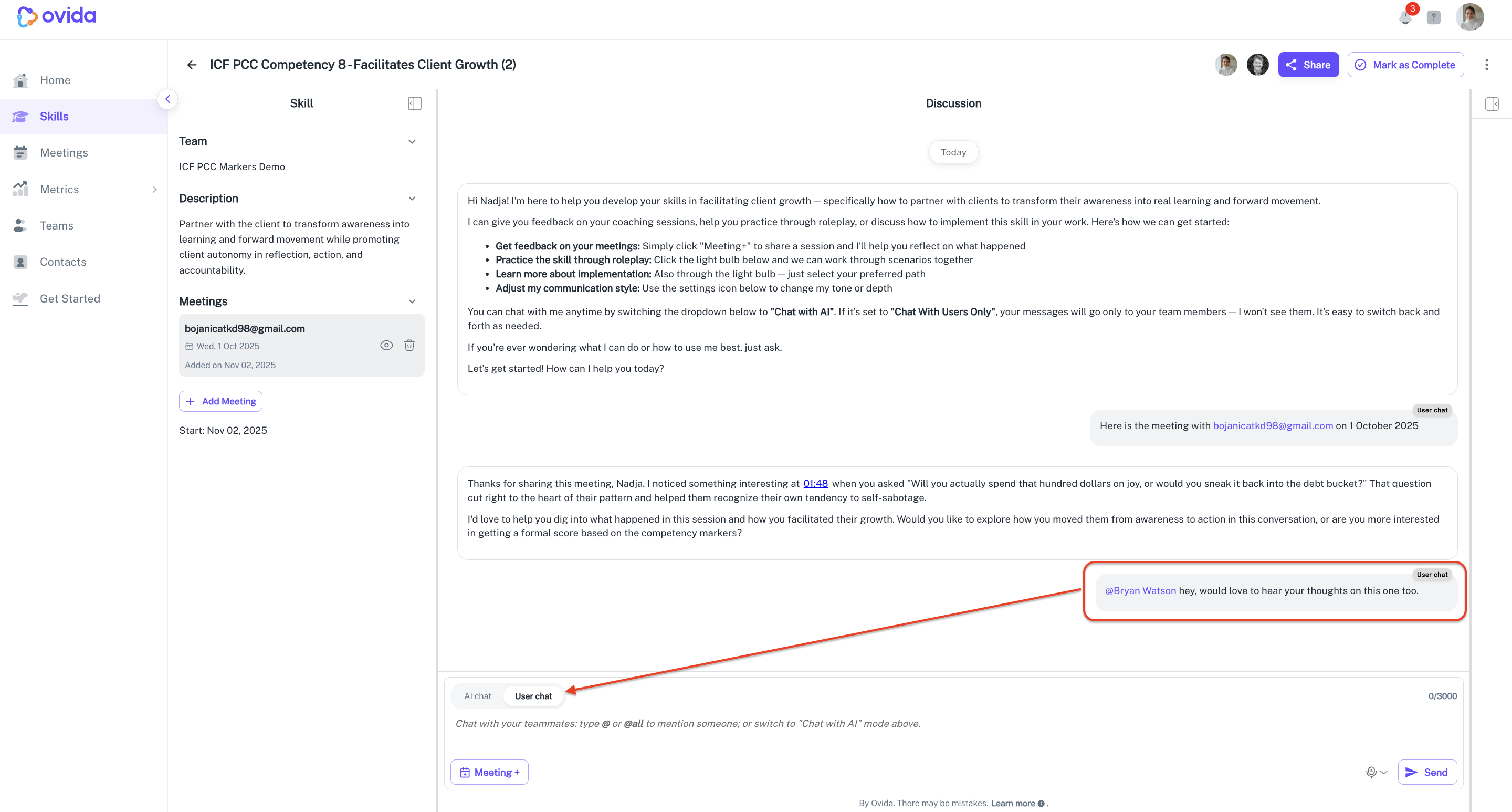
You can also use comments to discuss meetings with teammates, separately from the AI.
Each meeting has a dropdown to switch between two modes:
Ask AI — your questions go to Ovid for feedback
Comment — your messages go only to your team. The AI doesn't see these.
Use @mentions to tag teammates and pull them into the conversation. This is a good way to ask for perspective, invite peer feedback, or highlight specific moments. Comments stay attached to the meeting, so you can return to them as you keep practising.
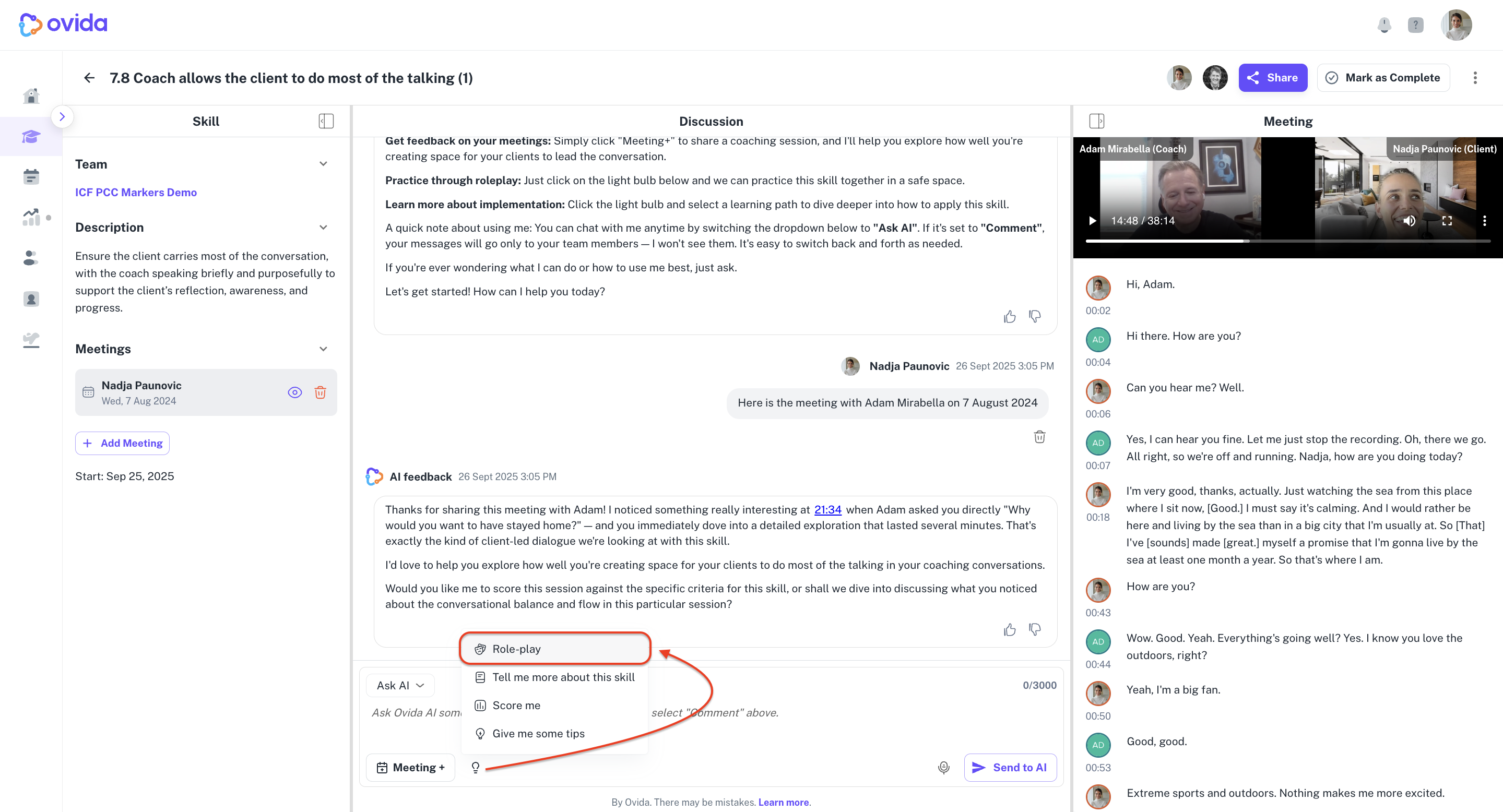
3. Roleplay with Ovid
Roleplay gives you a safe space to practise without the pressure of a real conversation.
Start a roleplay from your active Skill.
Choose the role you want Ovid to play.
Apply the skill as the conversation unfolds — asking powerful questions, recognising emotions, active listening, whatever you're working on.
Get feedback during the roleplay, and a detailed review when it's done.
4. Score yourself against the Skill's rubric
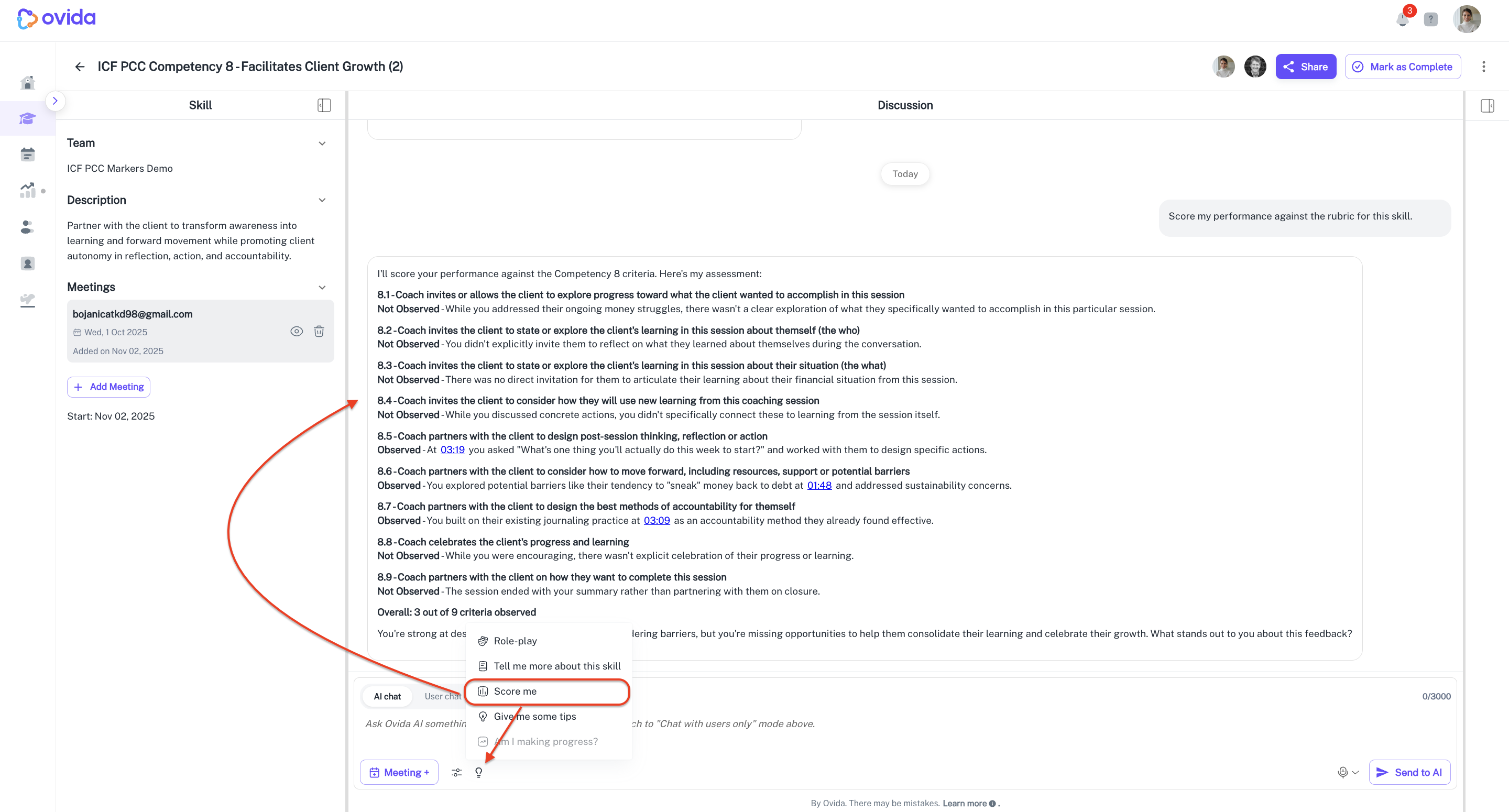
You can ask Ovid to score a meeting against the Skill's rubric. Add the meeting to the Skill first (see "How do I add a meeting to a Skill?"), then ask the AI Skills Agent to score it.
The AI will:
Review your meeting analysis and match behaviours to each criterion in the rubric.
Show whether each rubric line was Observed or Not Observed.
Provide a short explanation under each line, drawn from your transcript.
At the end, you'll get an overall summary with patterns and areas to develop. You can ask follow-up questions like "Which part should I focus on improving next?" or "Show me examples of what 'Observed' looks like."
5. Get tips on demonstrating the Skill
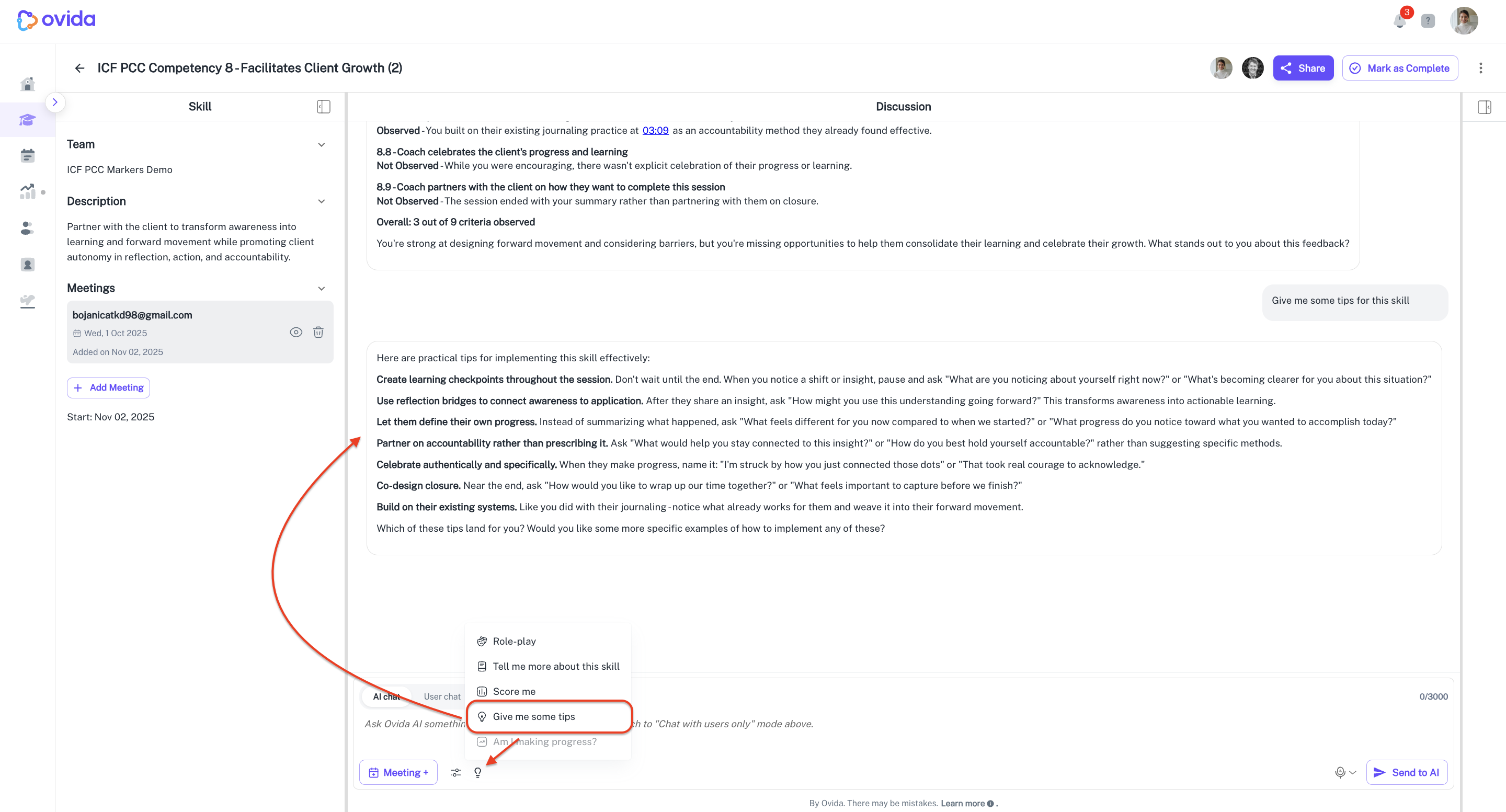
Click Give me some tips from the lightbulb icon in the lower-left corner. The AI Agent will review the Skill you're working on and generate practical, situation-specific tips you can apply in your next meeting.
6. Check your progress over time
Use Am I making progress? to see how the Skill is developing across multiple meetings (not just one).
The AI will:
Review all meetings linked to that Skill.
Identify where you're consistently stronger and where gaps remain.
Surface specific examples — strengths, ongoing challenges, and brief excerpts from your meetings showing concrete progress.
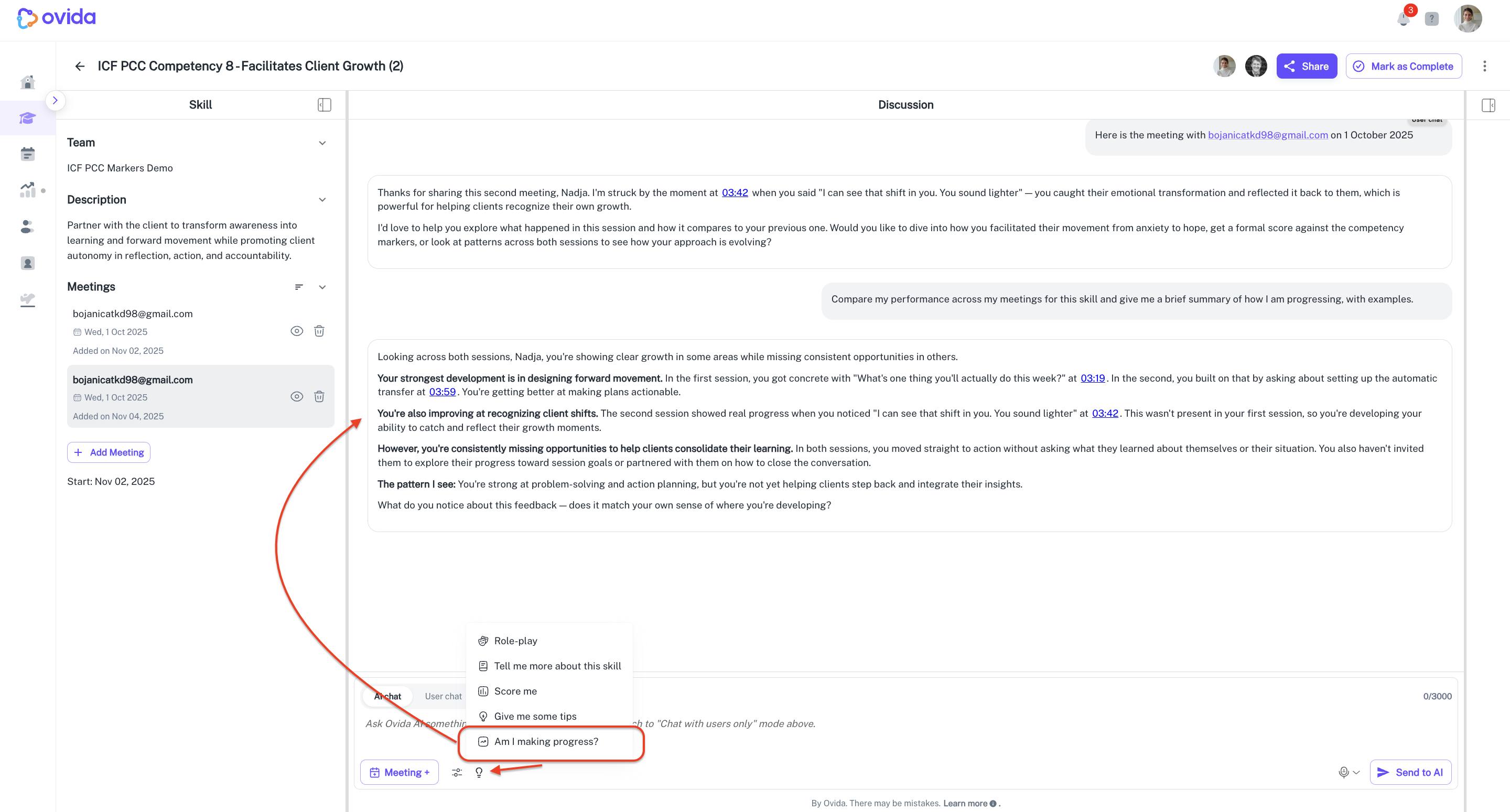
ℹ You need at least two meetings linked to the Skill before progress comparison works.