How do I navigate the Skills page?
Last updated: September 2, 2026
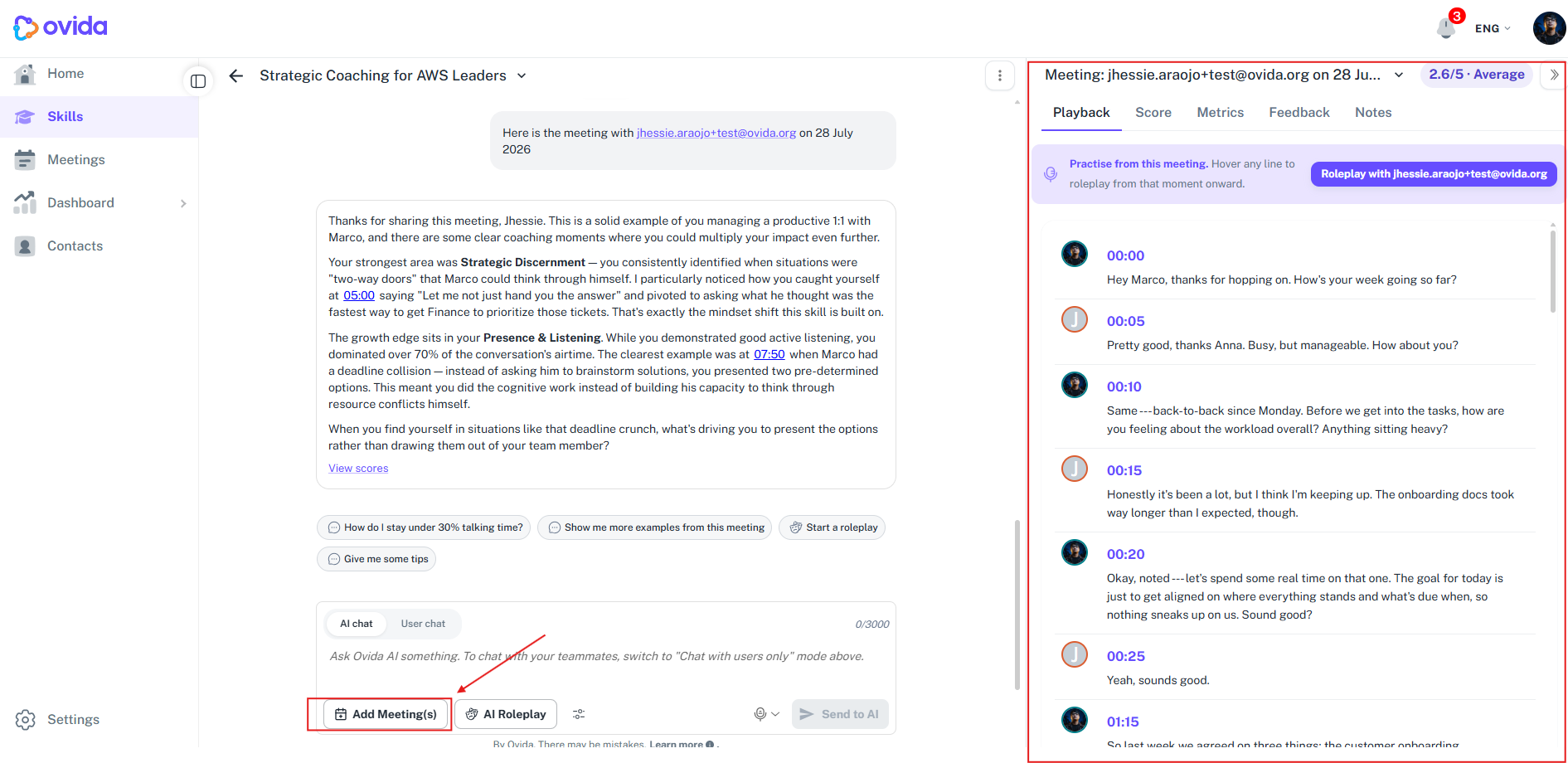
The skill page has two panels. Chat with Ovid on the left, and use the right-hand context panel to see your score, progress, linked meetings and roleplays, and the full analysis of any meeting you open
Here's a quick video guide for this article.
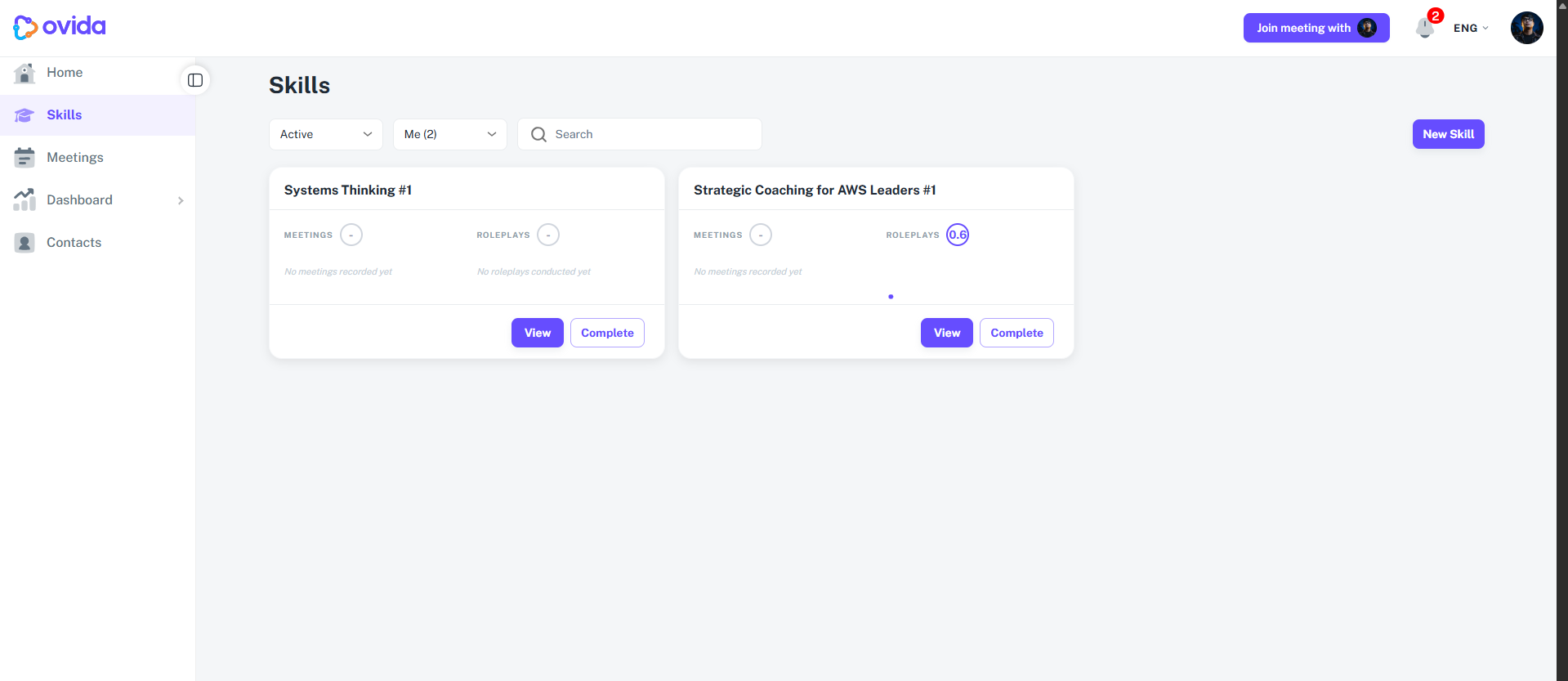
The two panels at a glance
The skill page is split into two panels.
Left panel. Chat with Ovid, the AI Skills Agent. Ask for feedback, kick off a roleplay, or link a meeting so it counts towards this skill.
Right panel. Your context for this skill: score, progress, and everything linked to it. Collapse it if you want more room for the chat.
Use Add meeting(s) in the chat to link a real meeting to this skill.
What the context panel shows
The right panel groups everything into one view:
Your current skill score and level.
A progress chart plotting each session in order.
A list of linked meetings and roleplays, each with a score badge.
A What next prompt with a personalised recommendation, for example a focused roleplay on your two lowest-scoring criteria, or an "add a meeting" nudge if you don’t have one yet.
Open a linked meeting from the panel
Select any meeting in the panel to open it in place. This gives you the full analysis of that meeting without leaving the skill.
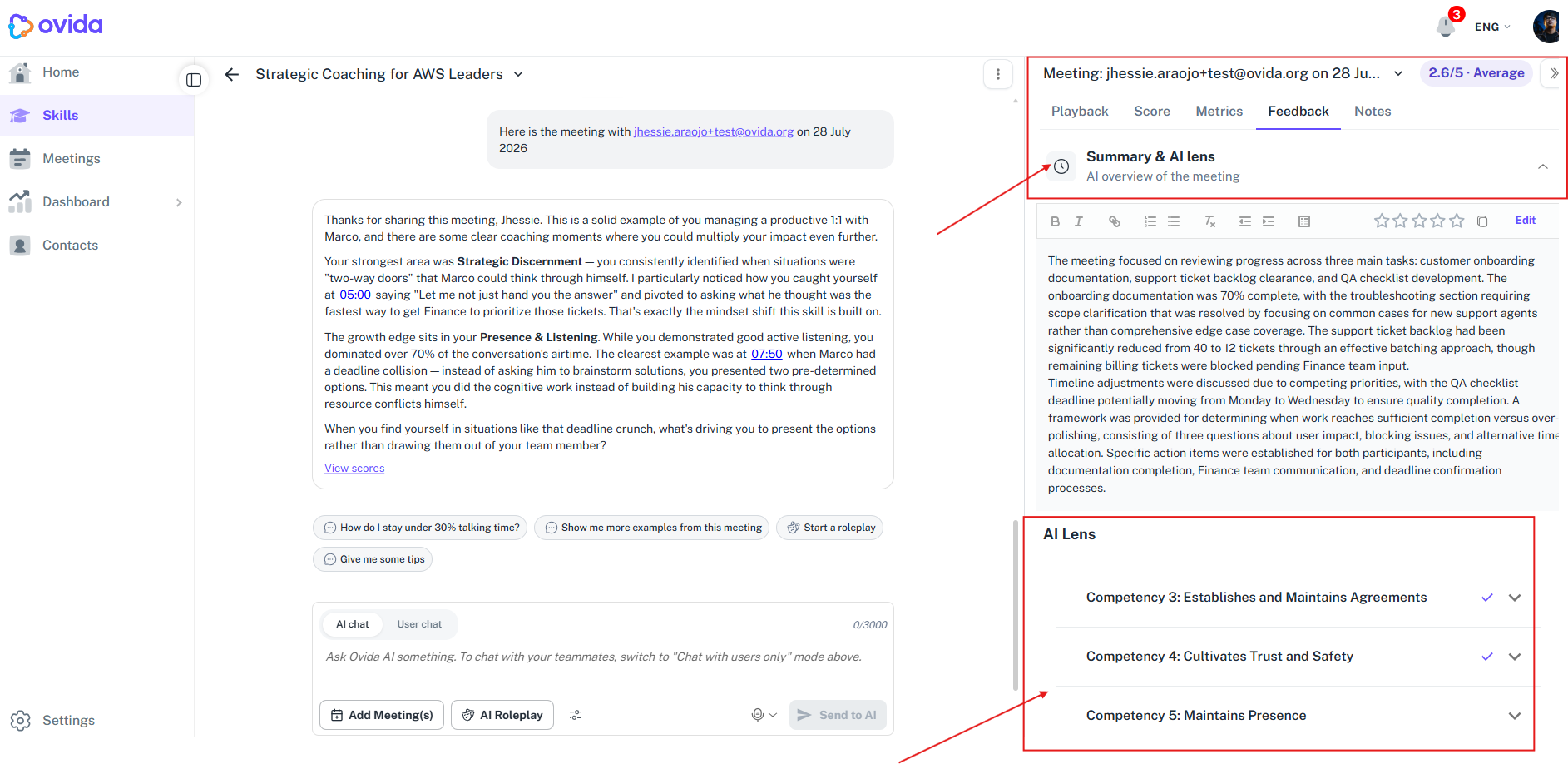
Five tabs appear across the top of the meeting view:
Playback. The recording and transcript.
Score. How this meeting scored against the criteria for this skill.
Metrics. The same measures as the meeting page (for example Share of Voice, Question Rate, Open Questions %, Interruptions), each with a target range so you can see where you sit.
Feedback. Summary, AI Lens, Feedback, and Actions, grouped together.
Notes. Your private notes on this meeting.
You can view and edit Summary, Actions, Feedback, and Notes here just as on the meeting page, and changes sync both ways. AI Lens is view-only.
Nothing has been removed from the meeting page itself. The skill panel is a shortcut, not a replacement.
Open a linked roleplay from the panel
Select a roleplay in the panel to open it in the same view. A roleplay shows Playback, Score, and Scenario rather than the meeting tabs.
💡 Tip: to compare recent sessions against your target, open two meetings in a row from the panel and jump between the Metrics tabs.