How do I run my first meeting on Ovida?
Last updated: September 2, 2026
A walkthrough for your first real meeting. Each step links to the detail article if you need more help along the way.
Before you start
If you haven't yet, try a roleplay first. It's a faster, no-pressure way to see how Ovida coaches in real time before you bring in a real person.
The four steps
1. Create the meeting
Set up the meeting from your Home or Meetings page. You'll pick the time, the mode, and the people involved.
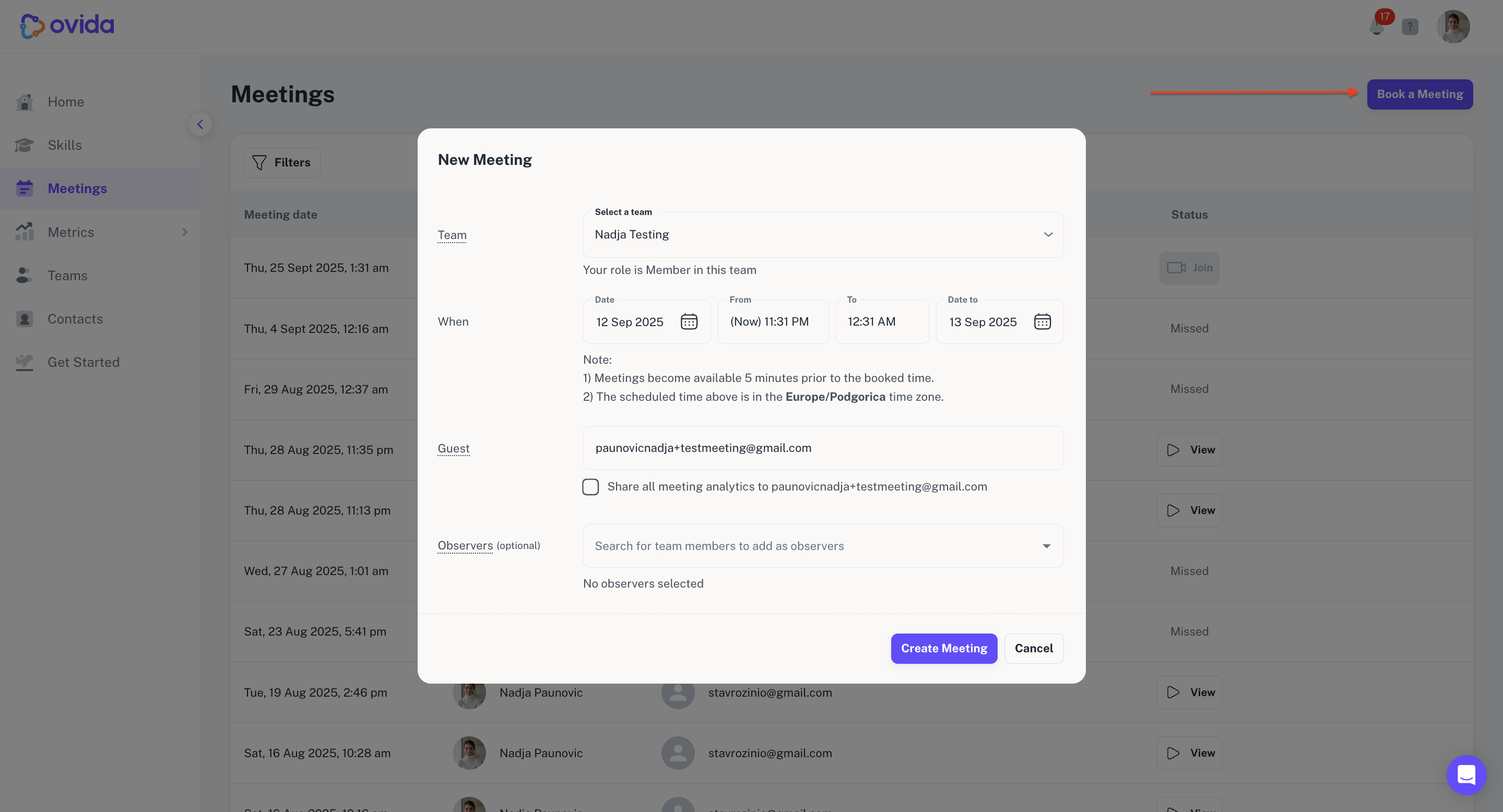
Full instructions: How do I create a meeting?
2. Join the meeting
The meeting will appear on your Home and Meetings pages. The Join button becomes active 5 minutes before the start time.
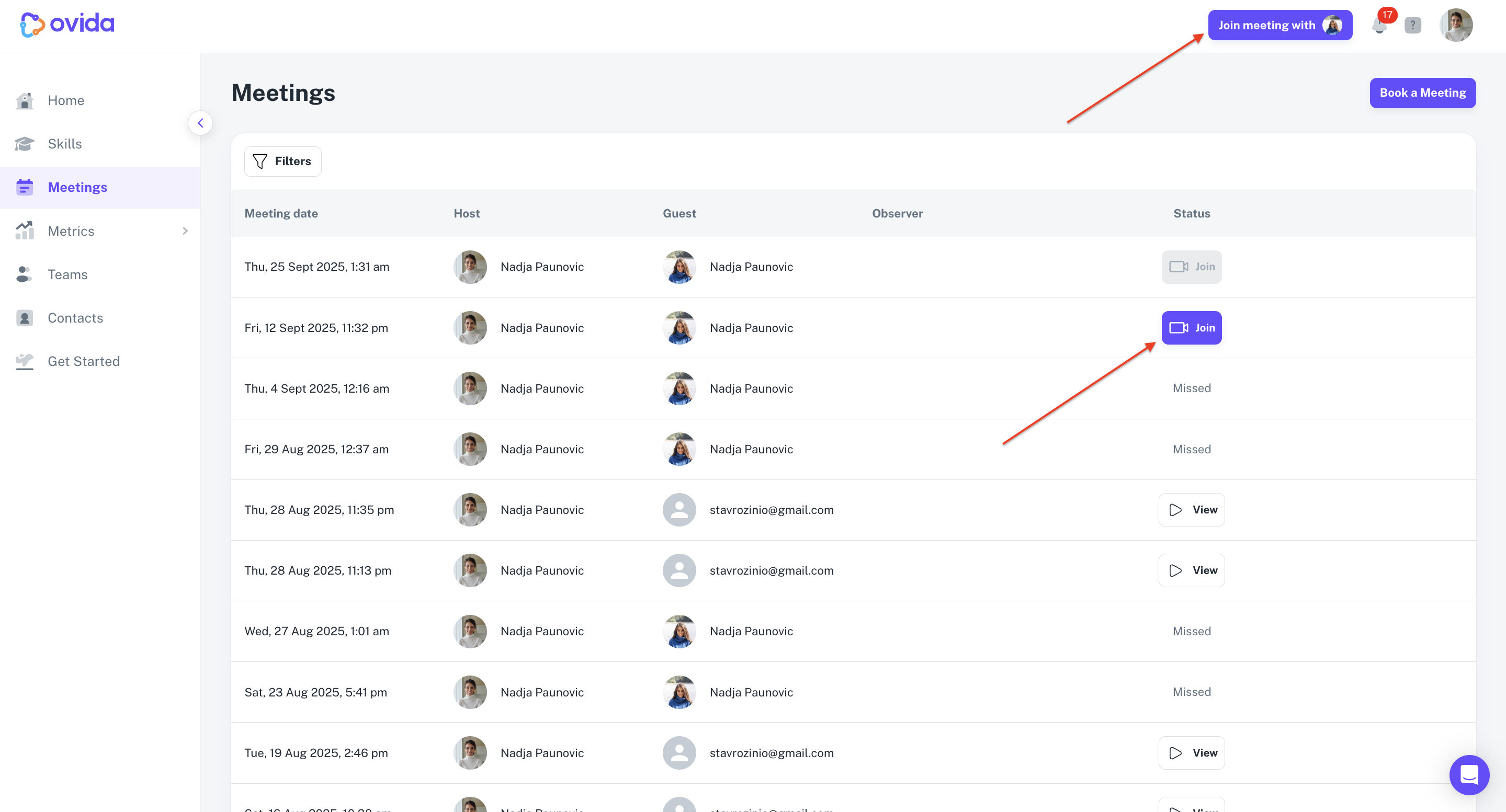
Full instructions: How do I join a meeting?
3. Test your audio and video
Before you go in, test your camera and microphone from the Meeting lobby. This is where most first-meeting hiccups happen, so it's worth the 30 seconds.
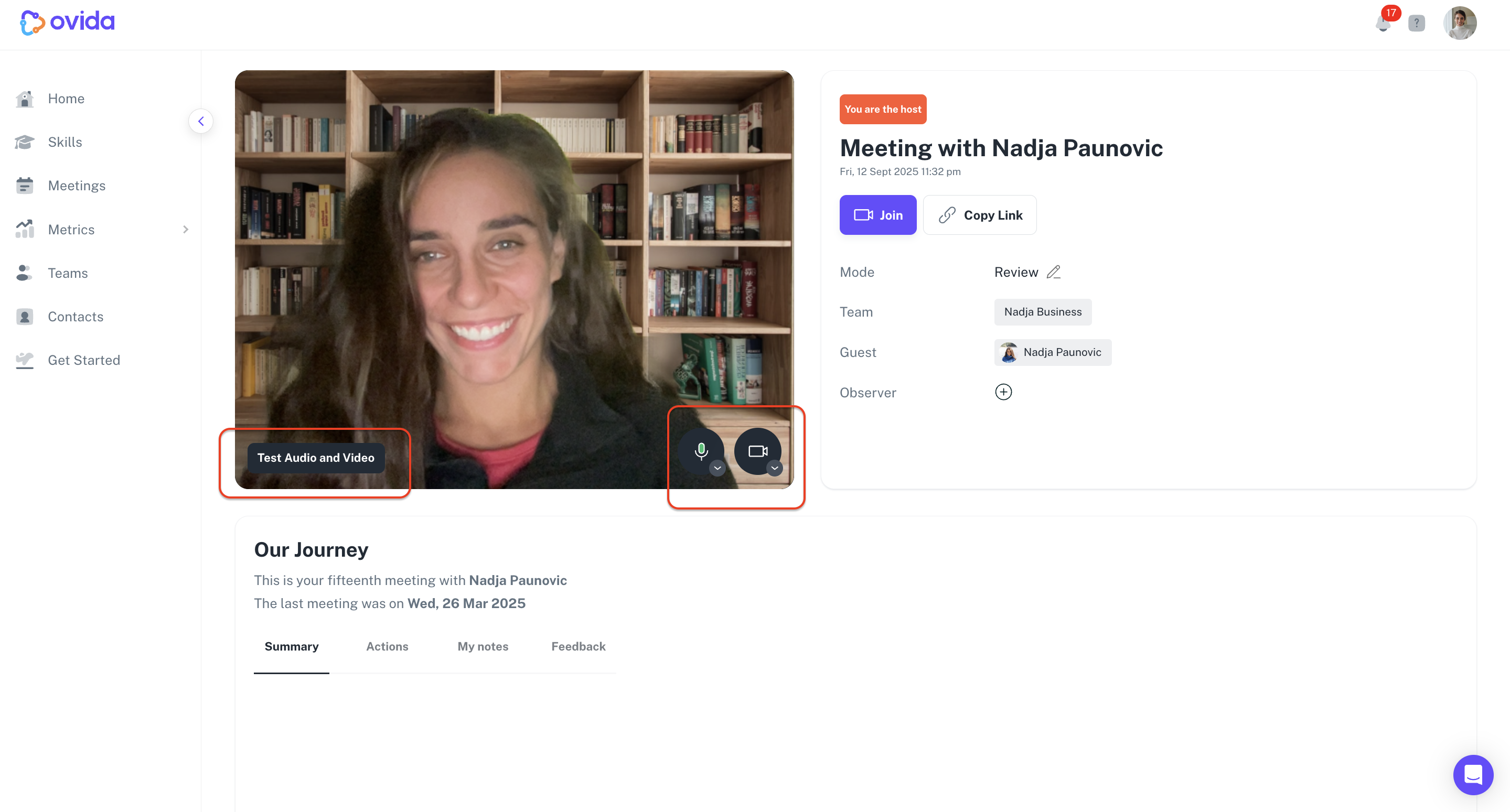
If audio or video isn't working: How do I grant Ovida access to my camera and microphone?
4. End the meeting
When you're done, you'll be asked whether to Save for feedback or Delete permanently. If you don't choose within 60 seconds, Ovida saves it automatically.
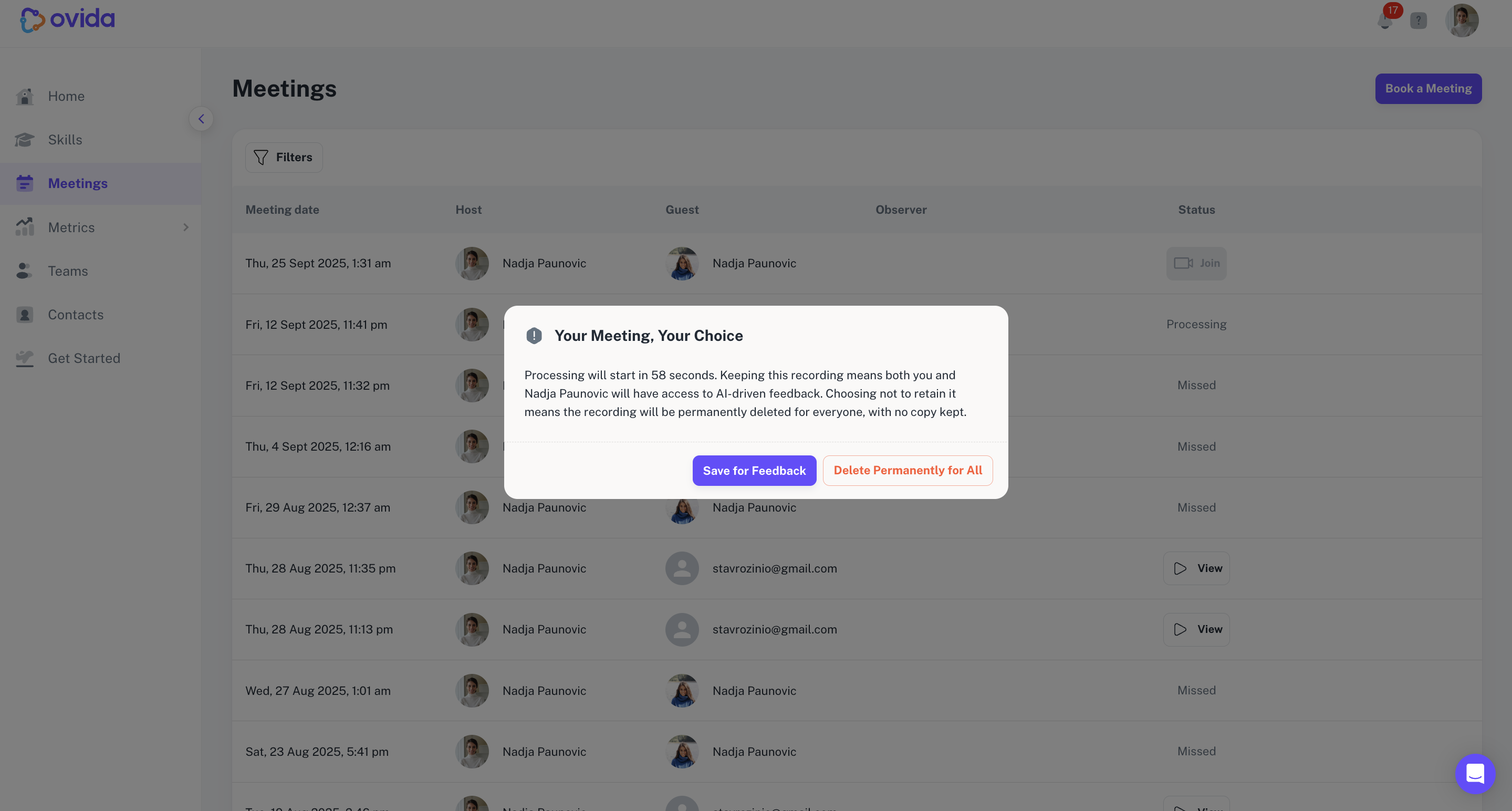
Full instructions: How do I end a meeting?
What happens next
Once your meeting is saved, Ovida processes it. A one-hour meeting takes roughly one hour to process. You'll get an email when your review is ready.
For what to do with the review: How do I review a meeting?