How do I use voice mode with the AI agent in Skills?
Last updated: May 22, 2026
Speak to Ovid instead of typing. Useful when you want practice conversations to feel more like real dialogue.
How to access voice mode
Open any Skill in your workspace.
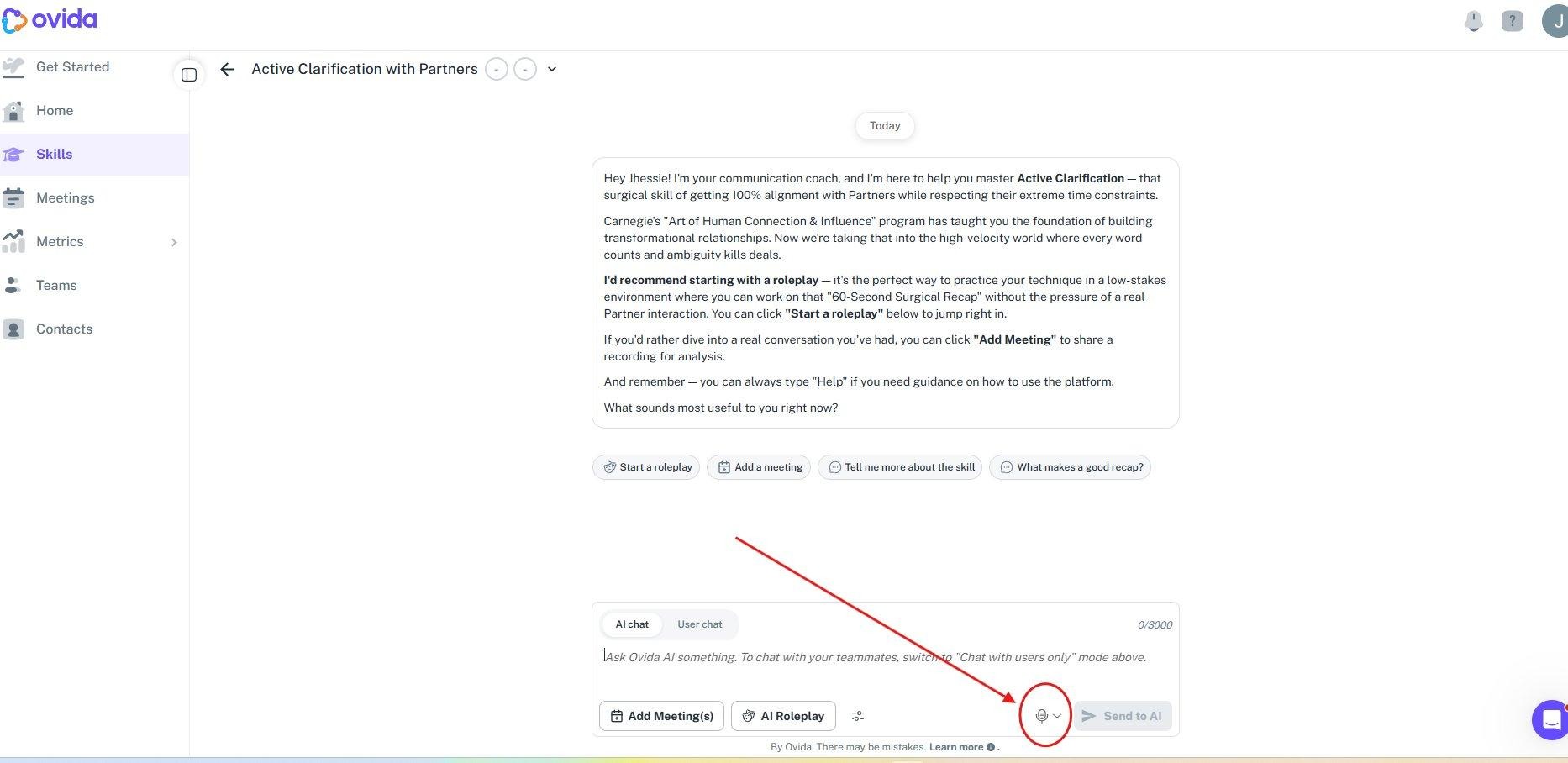
At the bottom of the discussion panel, find the text input box. Click the microphone icon on the right, next to Send to AI.
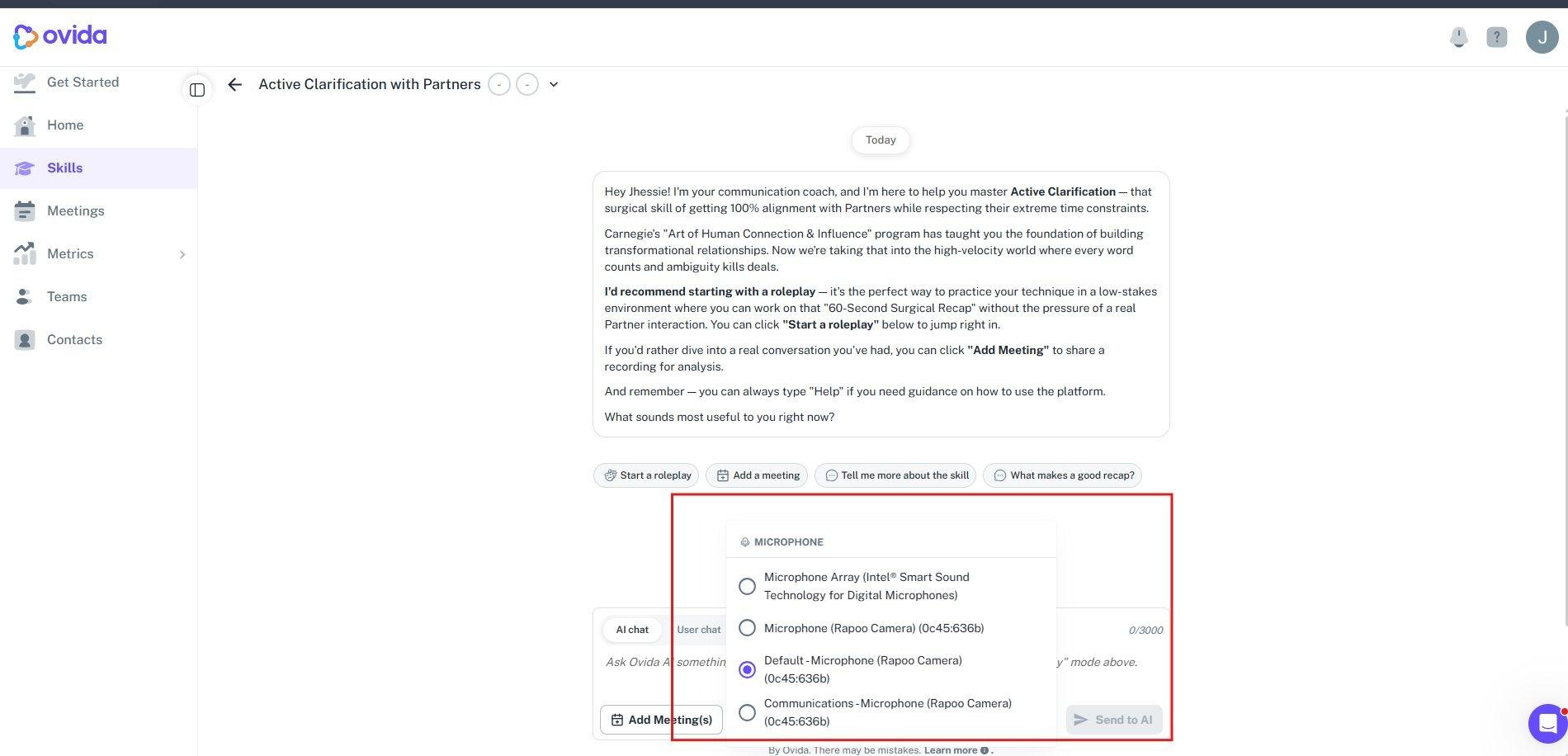
If you have more than one microphone connected (for example, a headset mic and a webcam mic), pick the one you want to use from the device menu.
Speak your message. Ovid will transcribe what you say and reply as if you had typed it.
If voice mode isn't working
Make sure your browser has permission to use your microphone. If the mic selection menu doesn't appear or your voice isn't being picked up, check your browser's site permissions and confirm the right device is set as default.
For full setup help, see How do I set up my camera and microphone for Ovida?