How do I add a meeting to a Skill?
Last updated: May 25, 2026
Link a meeting recording to a Skill so the AI can analyse the conversation against the Skill's rubric and give you focused feedback.
ℹ This feature is only available to users with access to the Skills feature.
When you add a meeting to a Skill, the AI Skills Agent reviews the recorded conversation, surfaces patterns specific to that Skill, and gives you tailored feedback in the Skill's discussion area.
Steps
Open the Skill from the Skills page.
Click + Add Meeting. You'll find this in the Meetings section on the left, or below the discussion thread in the left corner.
Choose the meeting you want to add.
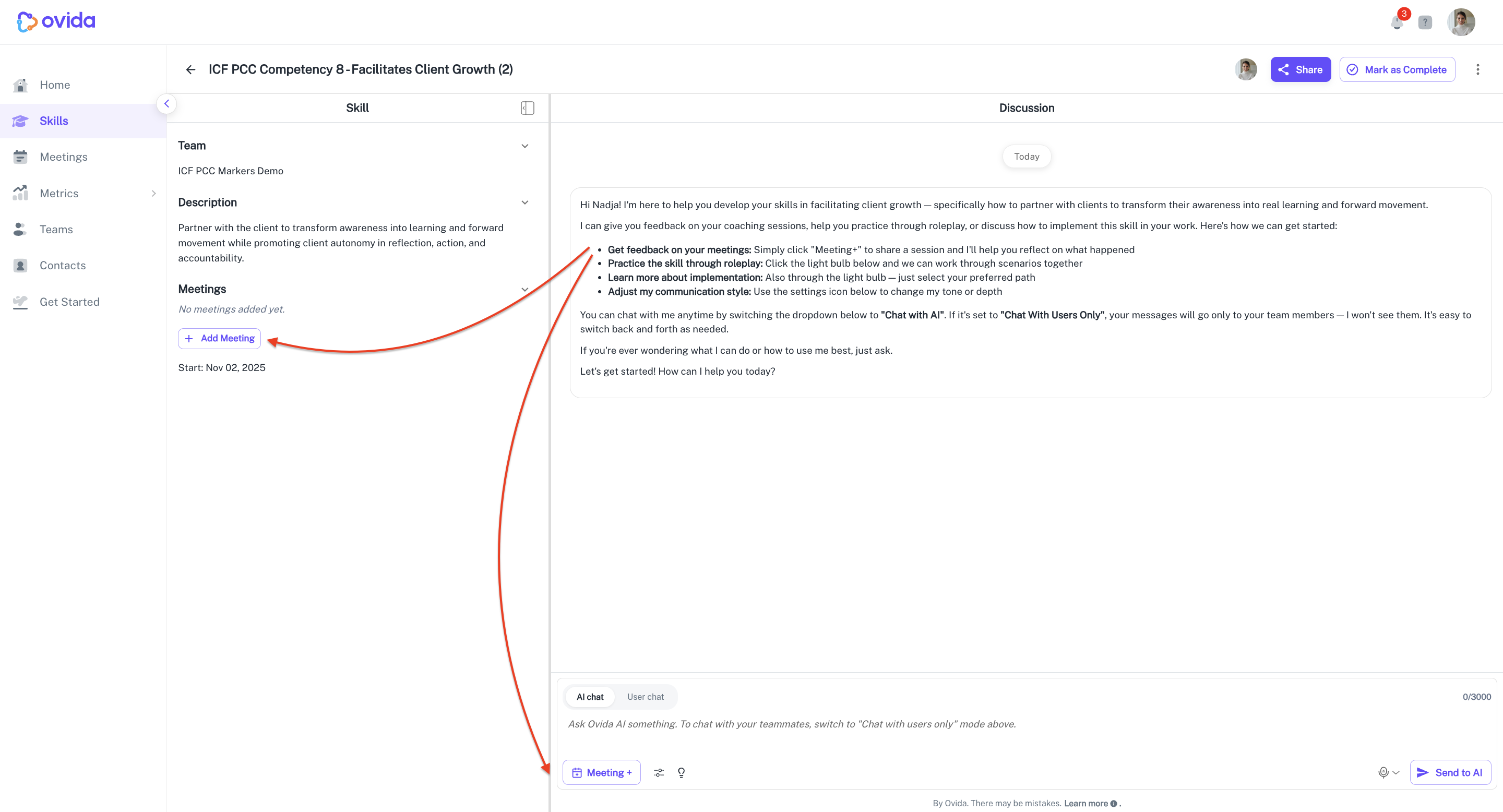
The AI automatically picks the meeting up and starts analysing. Your feedback will appear in the Discussion area.
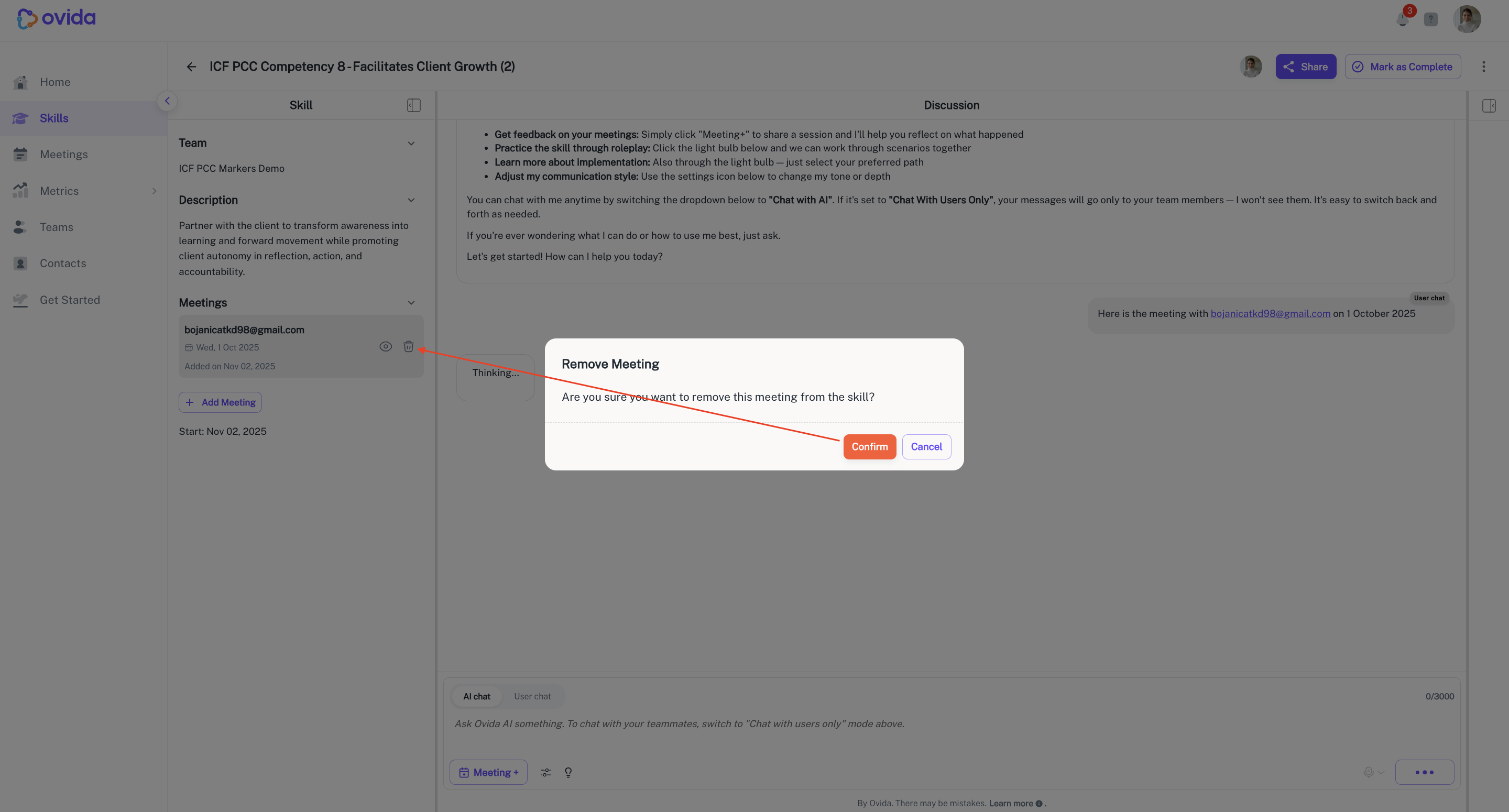
How to remove a meeting from a Skill
Removing a meeting from a Skill detaches the link, but doesn't delete the recording. You can reattach it later or link it to a different Skill.
You might remove a meeting when:
The meeting was added by mistake
You've already received feedback and want to keep your Skill space focused on recent practice
The conversation fits better under a different Skill