How do I manage observers as a Team Owner or Admin?
Last updated: May 24, 2026
Team Owners and Admins can add or remove observers on any meeting in their team.
If you manage a team, you can add or remove observers from any meeting your team members host. This article covers both flows.
If you're a host managing observers on your own meeting, see "How do I add or remove an observer from my meeting?" instead.
Before you start
A few things to know about adding observers:
Observers must be members of the same team the meeting is assigned to. If the meeting is assigned to a different team, allocate it to the right team first.
An observer must have a Mentor licence, or be on a Business or Enterprise team.
Make sure you have informed consent from meeting participants before adding observers to recordings.
Adding an observer
From the navigation menu, go to Teams and select the team you want.
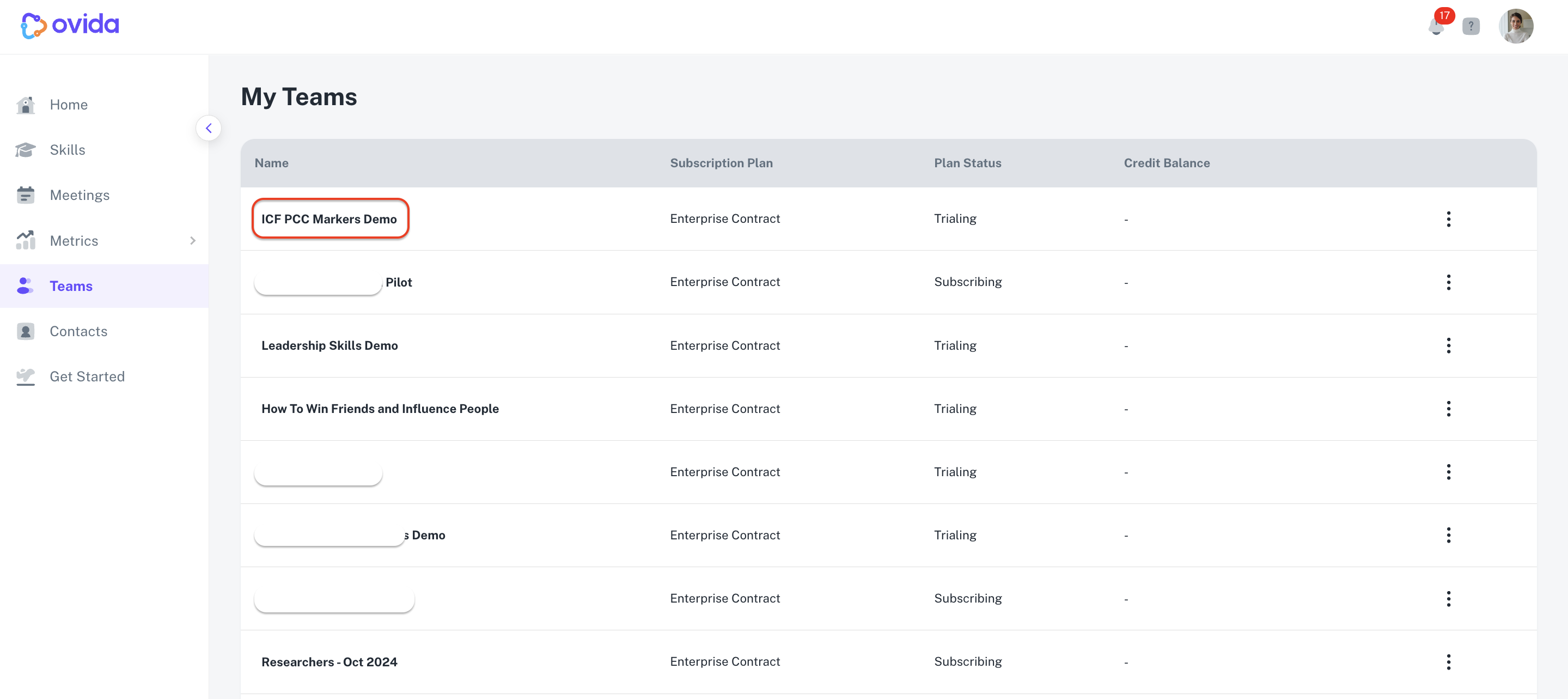
Click Meetings to see the meetings allocated to that team. Click the + under the Observer column on the meeting you want.
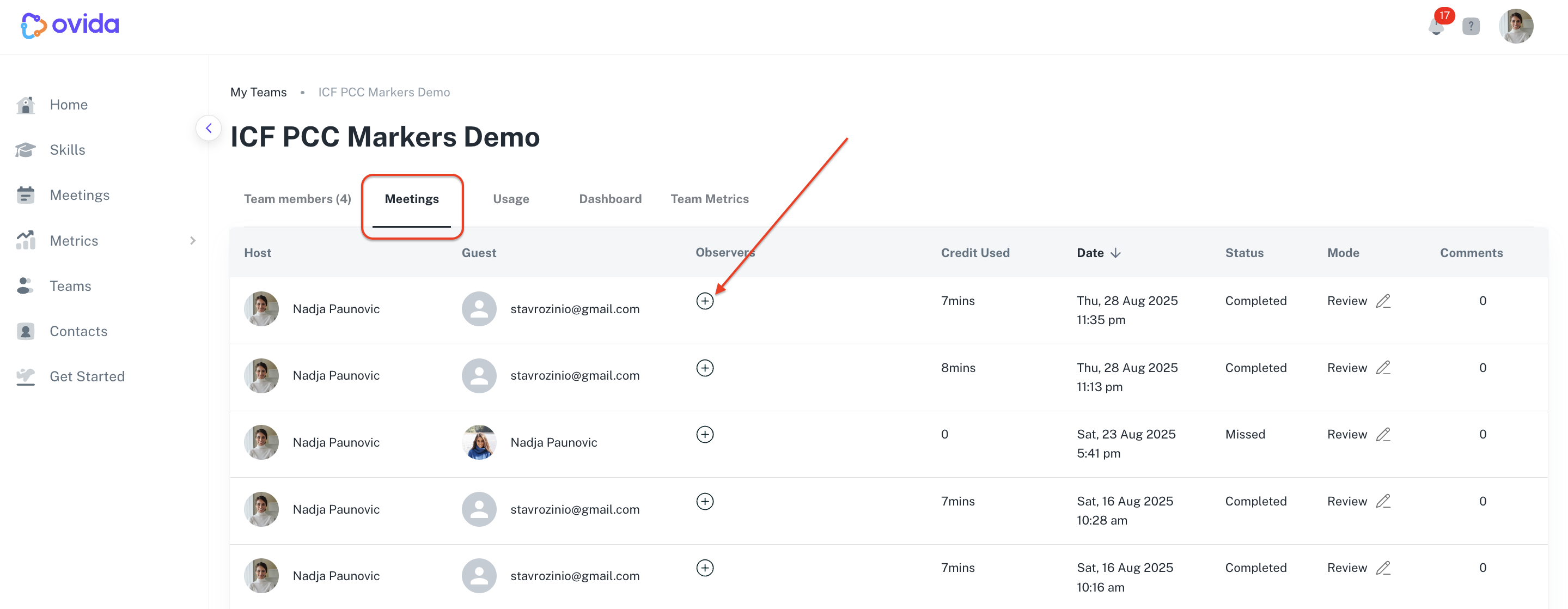
Select the team members you want to add as observers.
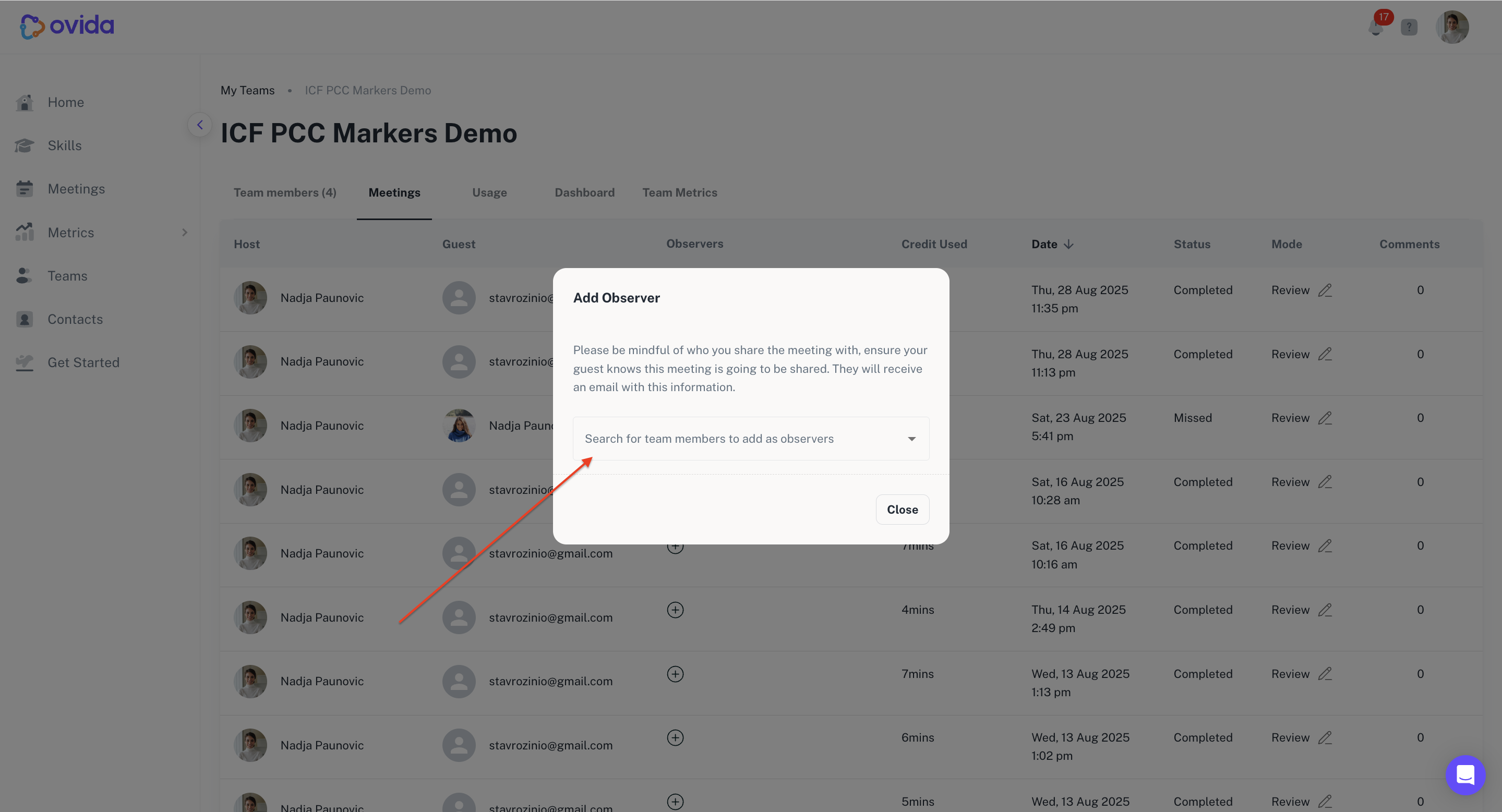
The host, guest, and observer will all receive an email notification.
Removing an observer
From the team's Meetings page, click the x next to the observer's name and confirm with the Remove button.
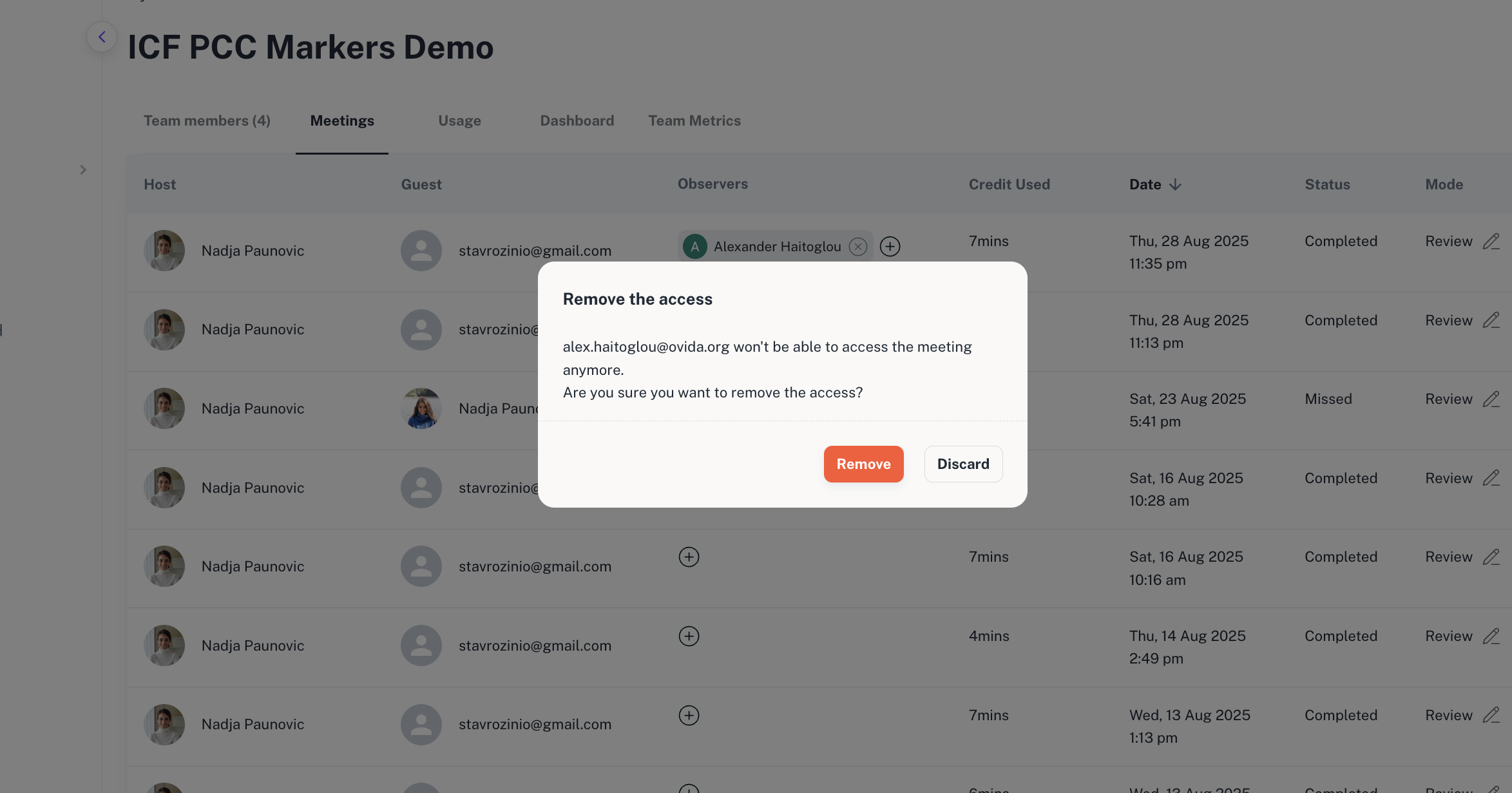
⚠ Once removed, the observer can no longer view the meeting. Any direct link they had will stop working.