How do I add, remove, or change a team member's role?
Last updated: May 25, 2026
Team Owners and Admins can manage team members from the Teams page. Add new members with a role, change existing roles, or remove people from the team.
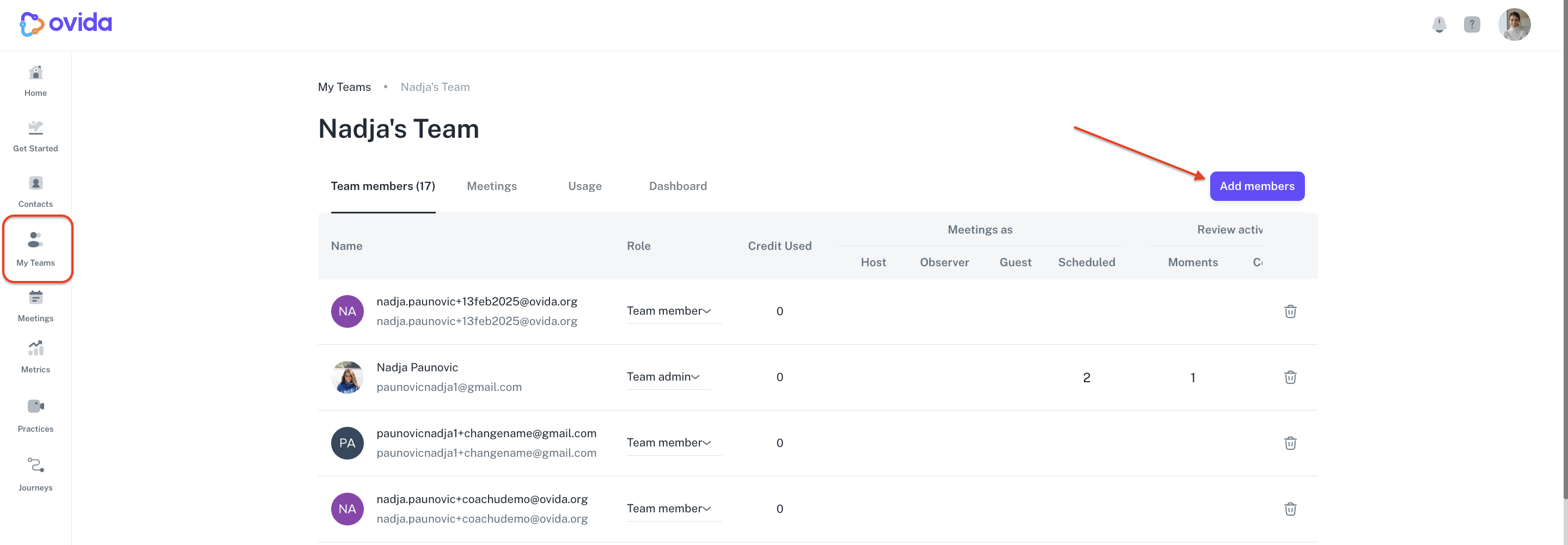
All three actions happen on the same page. To get there, go to My Teams and select the team you want to manage.
Add a new team member
Click Add members.
Enter the member's email and name.
Choose their role.
Click Add member to confirm.
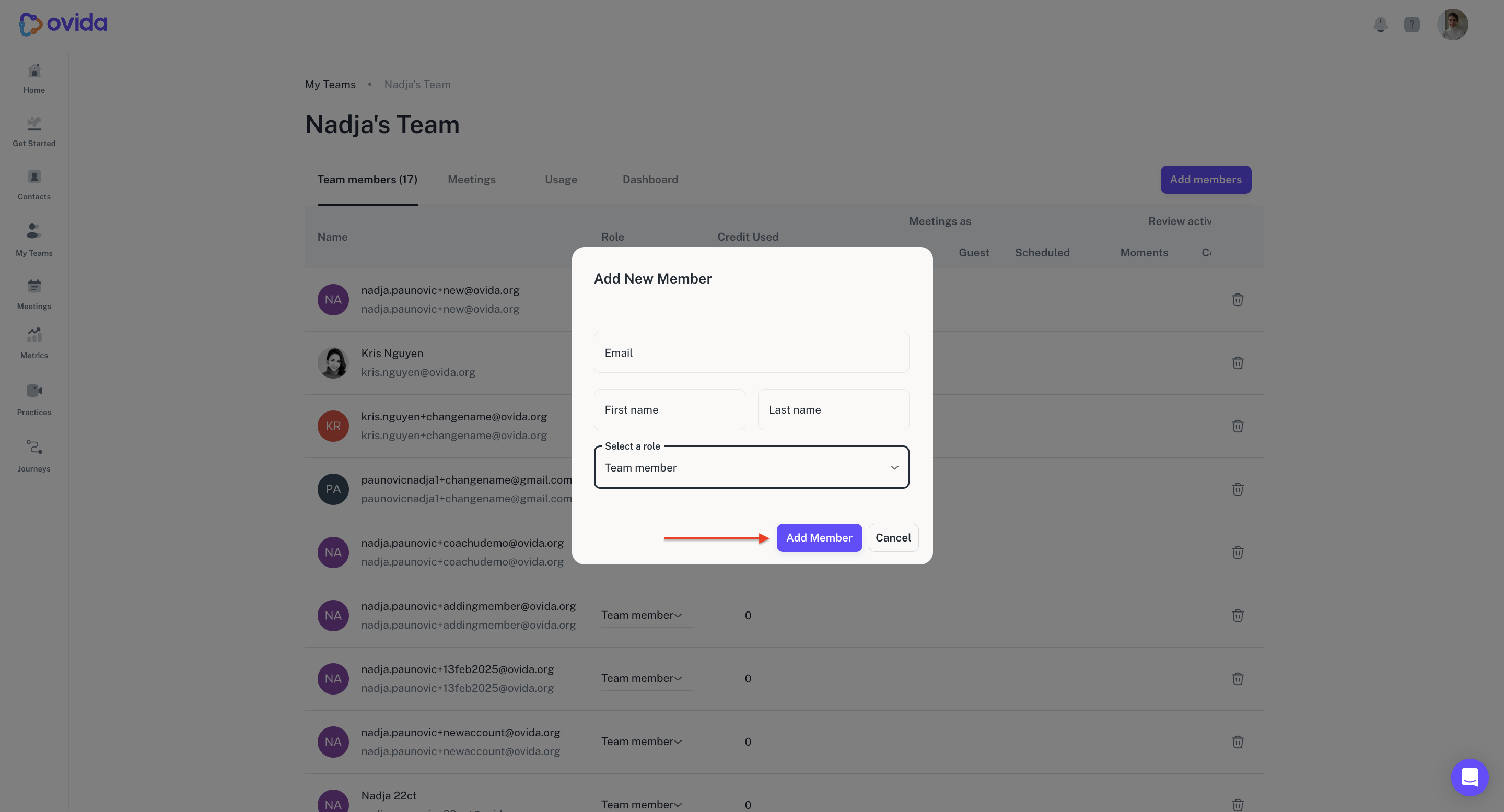
The new member appears in the Team members list immediately and receives an email invitation to join.
Change a member's role
In the Role column, click the dropdown next to the member and select their new role.
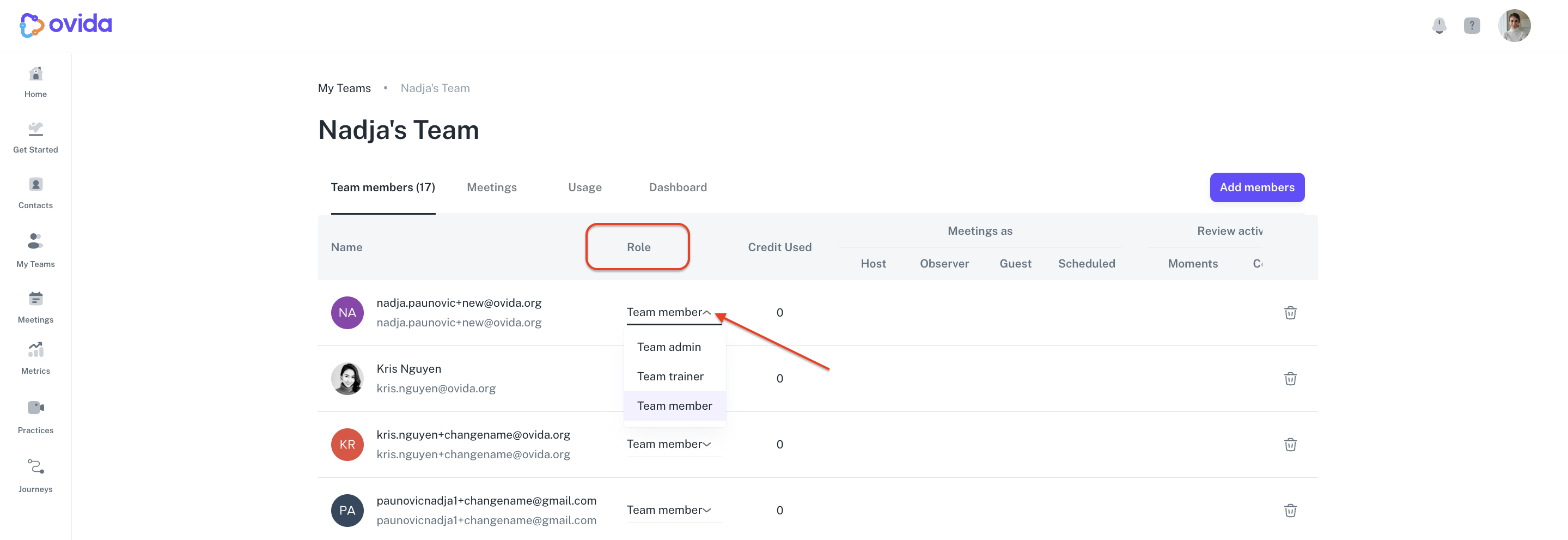
The change takes effect immediately.
Remove a team member
Click the trash icon next to the member you want to remove.
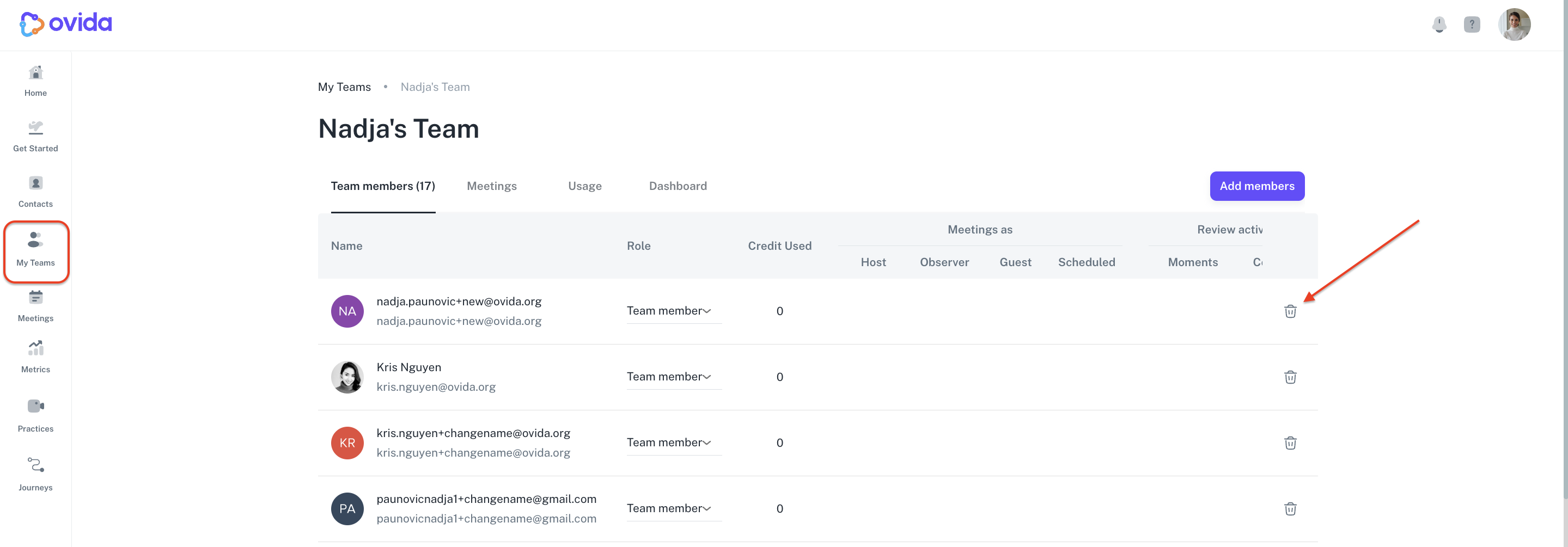
Click Remove to confirm.
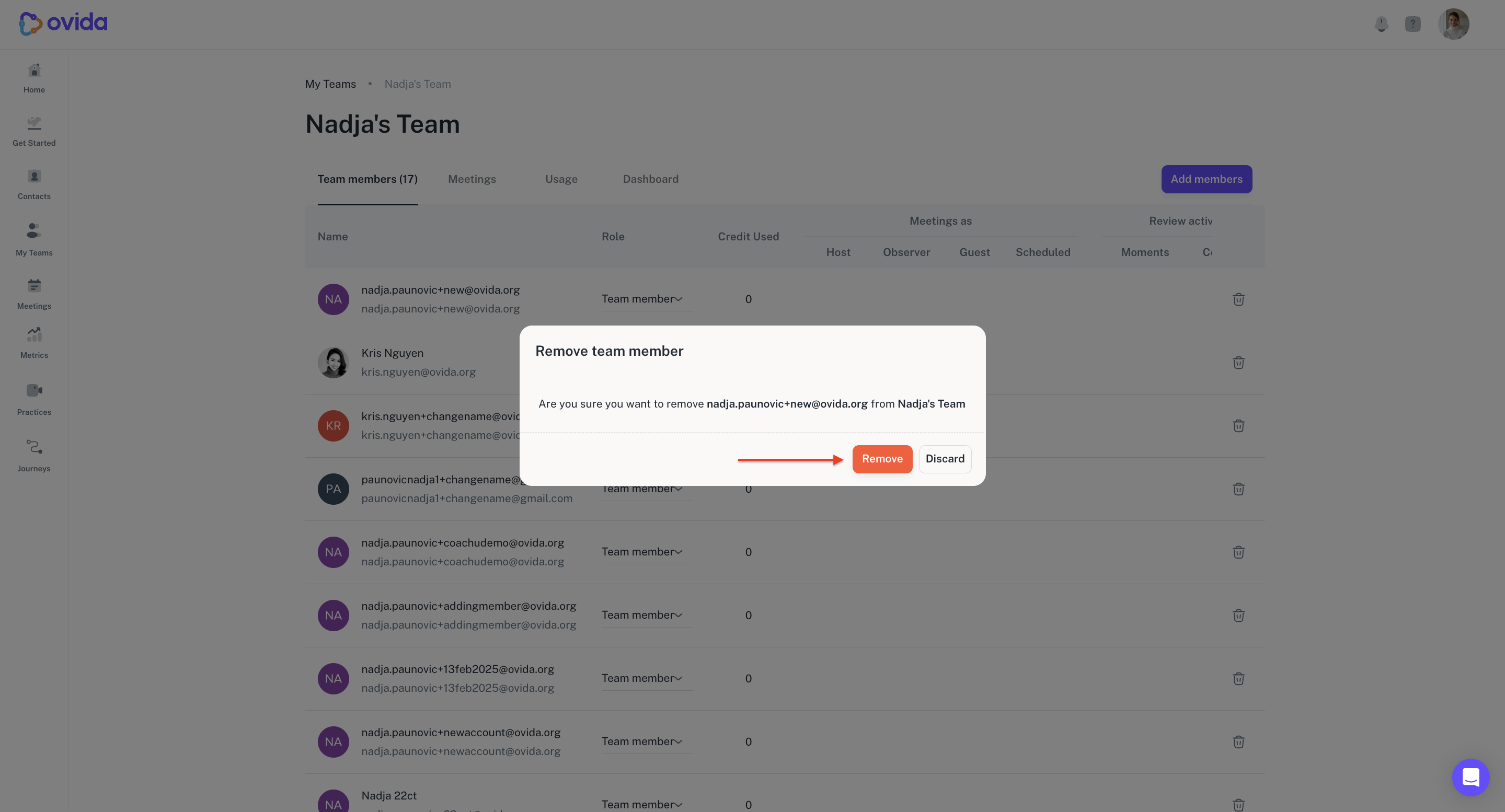
⚠ Once removed, the member loses access to your team, any team meetings, and any Skills shared with them.
Who can assign which role
Team Owners can assign any role, including Team Admin.
Team Admins can assign Team Assistant, Team Trainer, and Team Member roles, but not Team Admin.
For a full breakdown of what each role can do, see "What can each team role do?"