What can each team role do?
Last updated: June 26, 2026
The five team roles in Ovida control what each member can see and do within their team. Team Owners and Team Admins manage who has which role.
Ovida users can be members of a team, individual subscribers, or both. Within a team, your role determines what you can do as a member, and what you can do in relation to meetings allocated to that team.
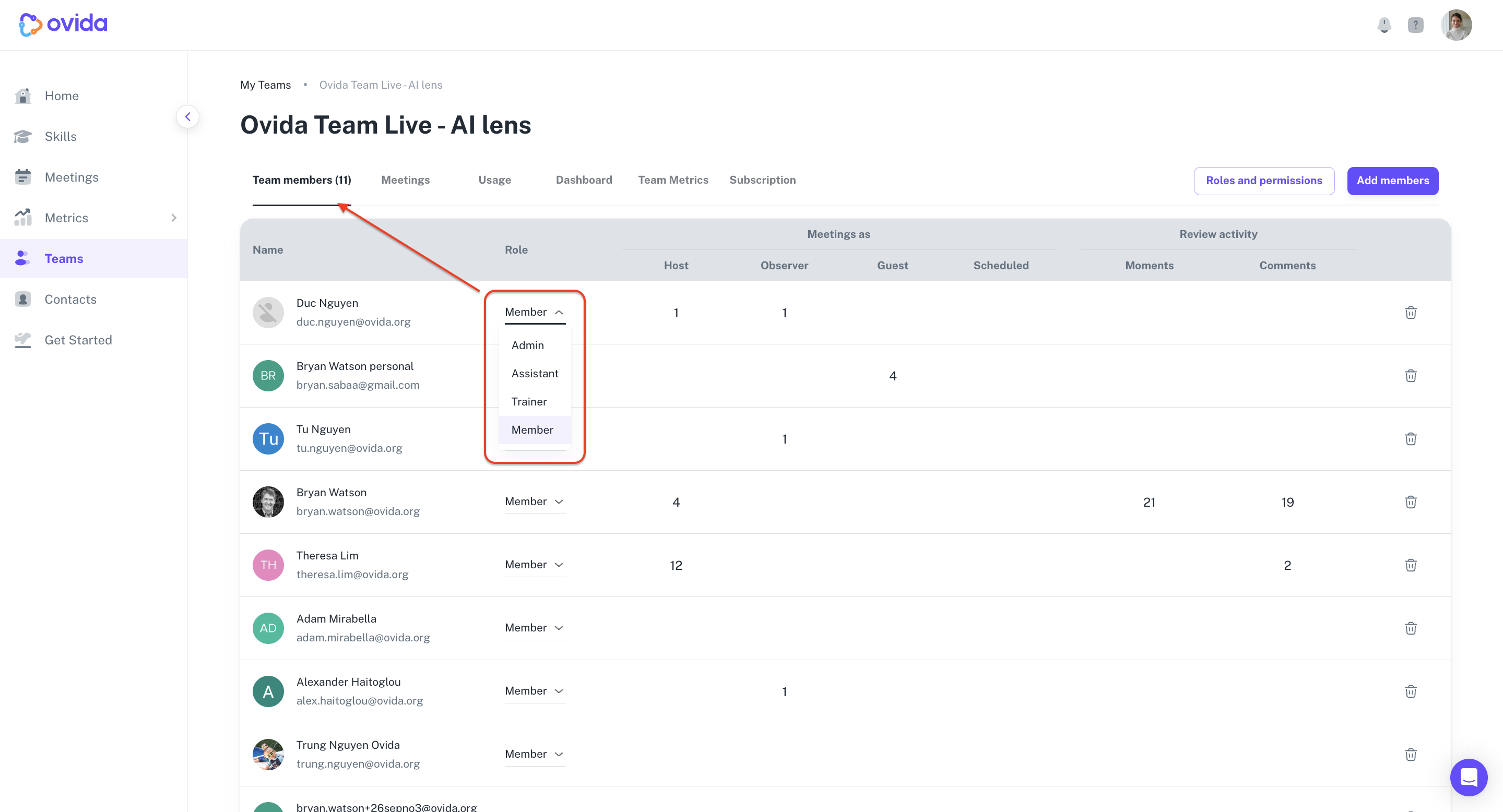
The five team roles
Team Owner — the highest level of authority. There's only one Team Owner per team.
Team Admin — same as Team Owner with a few exceptions (see below).
Team Assistant — for executive assistants and other administrative staff. Can schedule meetings on behalf of team members.
Team Trainer — can act as an observer on sessions allocated to the team.
Team Member — can book and host their own meetings in the team.
How organisation roles apply to teams
If you hold an organisation role, it now carries through to the teams in your organisation:
An Organisation Owner can do anything a Team Owner can do, on every team in the organisation.
An Organisation Admin can do anything a Team Admin can do, on every team in the organisation. Both roles see all of the organisation's teams on the My Teams page, including teams they are not a member of. On that page, the My role column shows Organisation Owner or Organisation Admin for those teams.
Team Owner vs Team Admin
Owner and Admin share most responsibilities. The differences are few but significant:
Action | Team Owner | Team Admin |
|---|---|---|
Manage billing (payments, invoices, subscription) | ✓ | ✗ |
Set or adjust the team usage cap | ✓ | View only |
Assign the Team Admin role | ✓ | ✗ |
Assign Skills to teams | ✓ | ✗ |
Assign Assistant, Trainer, and Member roles | ✓ | ✓ |
Add and remove team members | ✓ | ✓ |
Add and remove observers from meetings | ✓ | ✓ |
Access team data and dashboards | ✓ | ✓ |
Team permissions you can configure
Some permissions are toggleable. As a Team Owner or Admin, you can choose which roles have access to specific features:
View AI Lens (ICF competencies)
You can select which team roles see the AI Lens. This is useful when you want trainers, mentors, or faculty to have access but not students or clients.
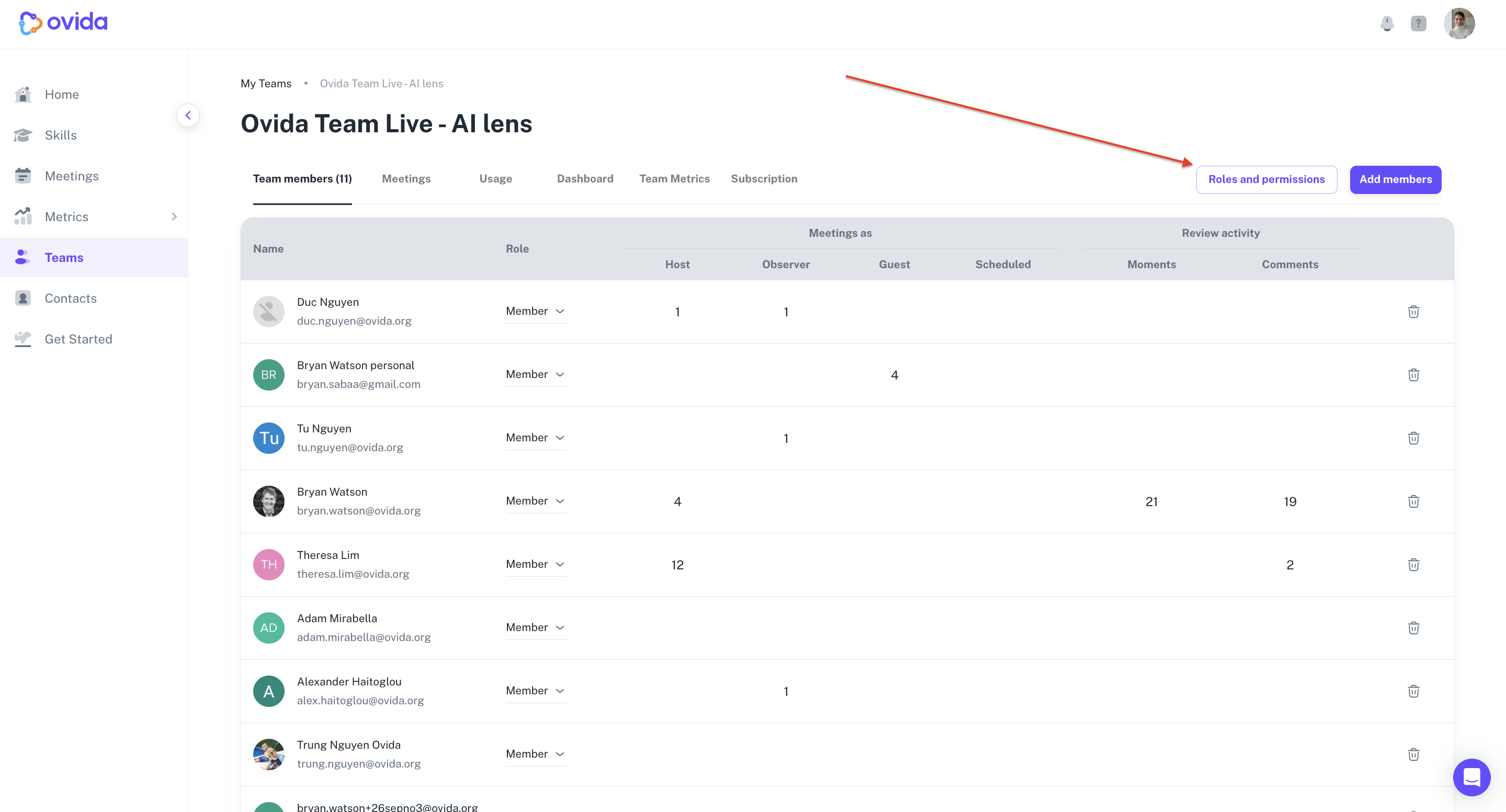
ℹ If AI Lens isn't enabled for your team yet, email support@ovida.org to have it switched on.
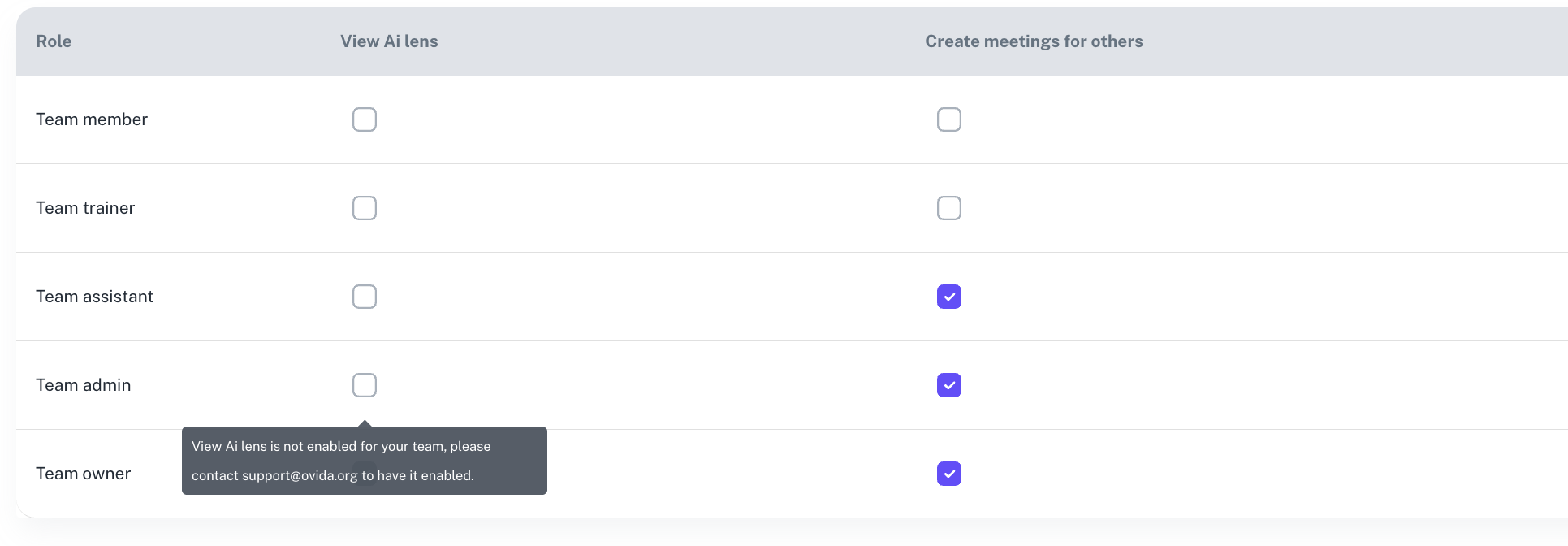
Create meetings for others
Automatically enabled for Owners, Admins, and Assistants. As a Team Owner or Admin, you can switch this on or off.
ℹ Team Members and Trainers can never create meetings for others, regardless of the toggle.
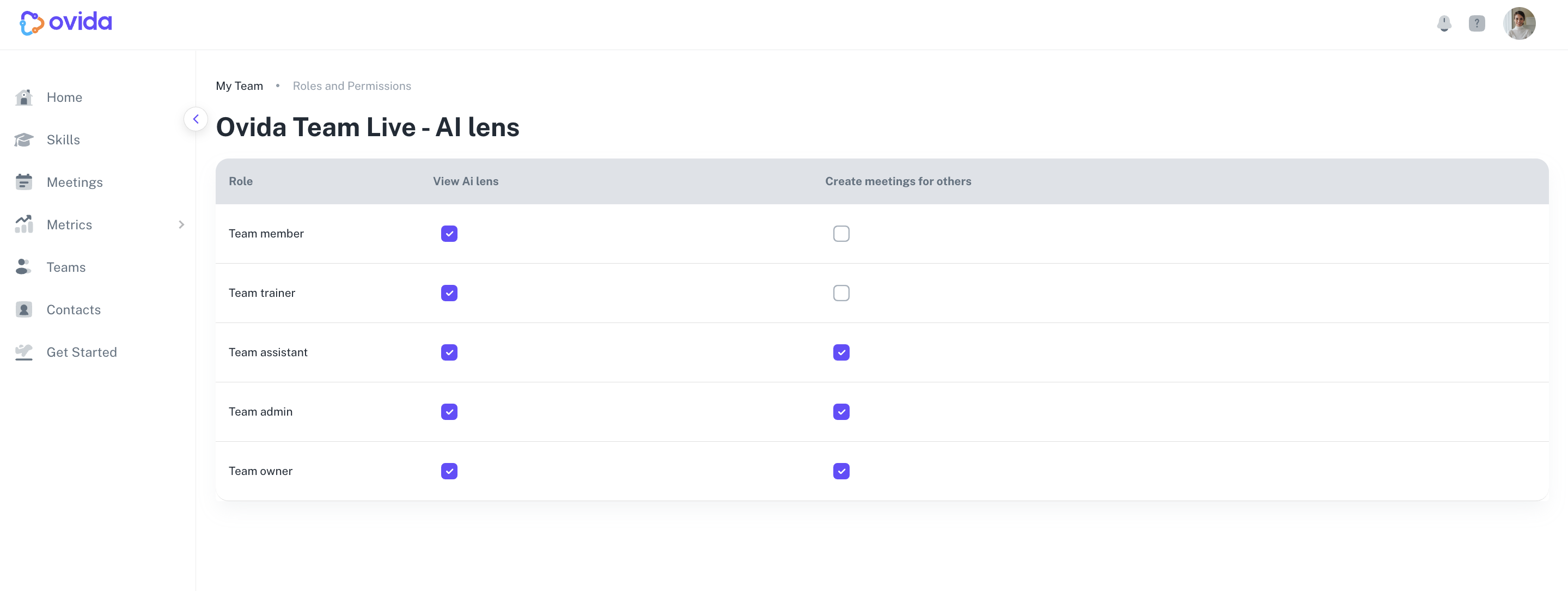
Where to manage roles and permissions
Team roles and permissions are managed from the Teams page. Click into a team to see and edit member roles and toggle role-based permissions.