How do I change the meeting mode for a team meeting?
Last updated: May 25, 2026
Team Owners and Admins can switch the meeting mode for any meeting allocated to their team.
A team member might create a meeting in a mode that doesn't fit your team's use case. If you're a Team Owner or Admin, you can change the mode after the fact for any meeting allocated to your team.
ℹ Team Owners and Admins can't allocate meetings to a team: only the meeting host can do that. They can only change the mode for meetings already allocated to their team.
Steps
Go to the Teams page.
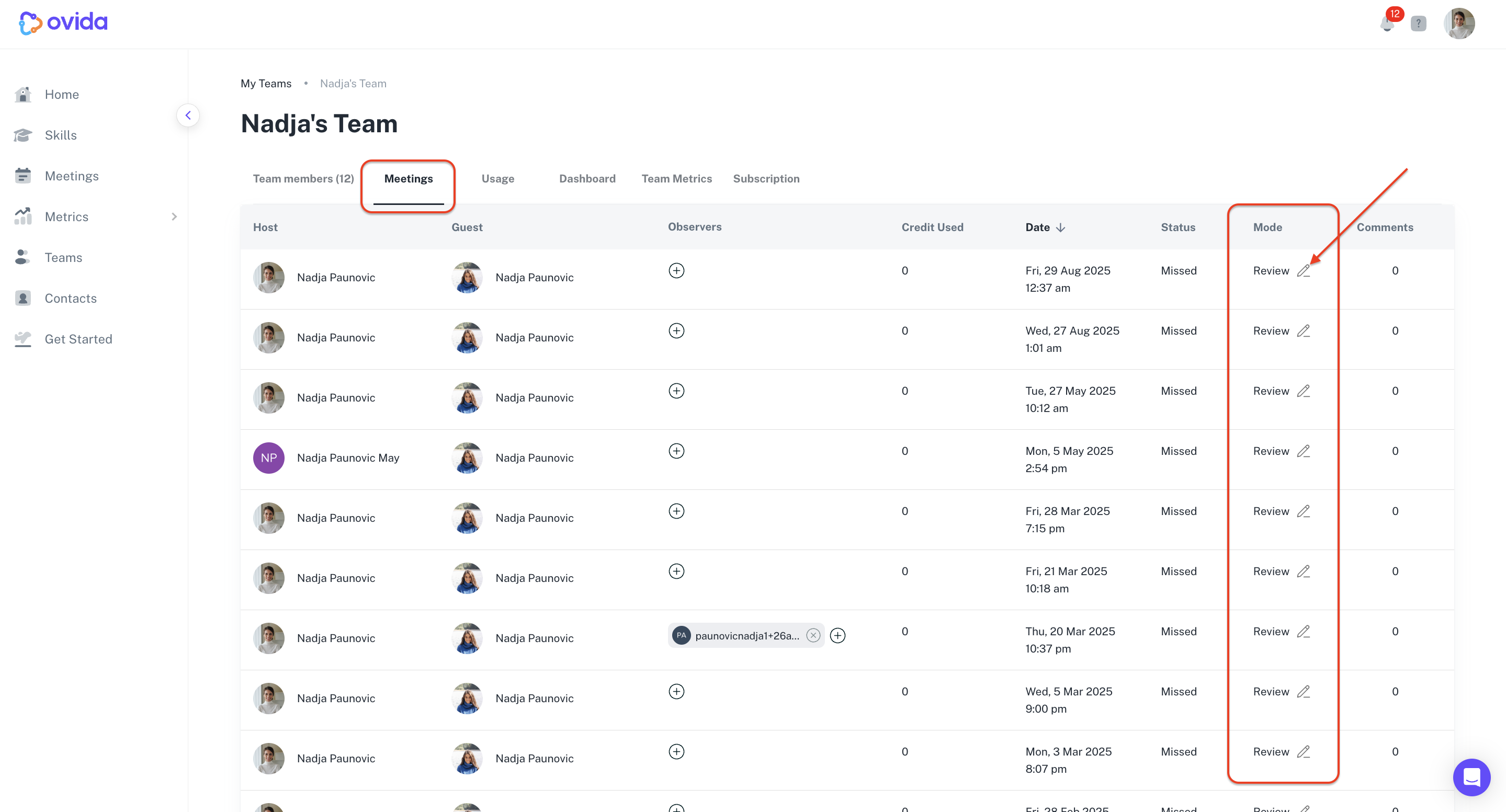
Open the Meetings tab.
In the Mode column, click the edit icon next to the meeting you want to change.
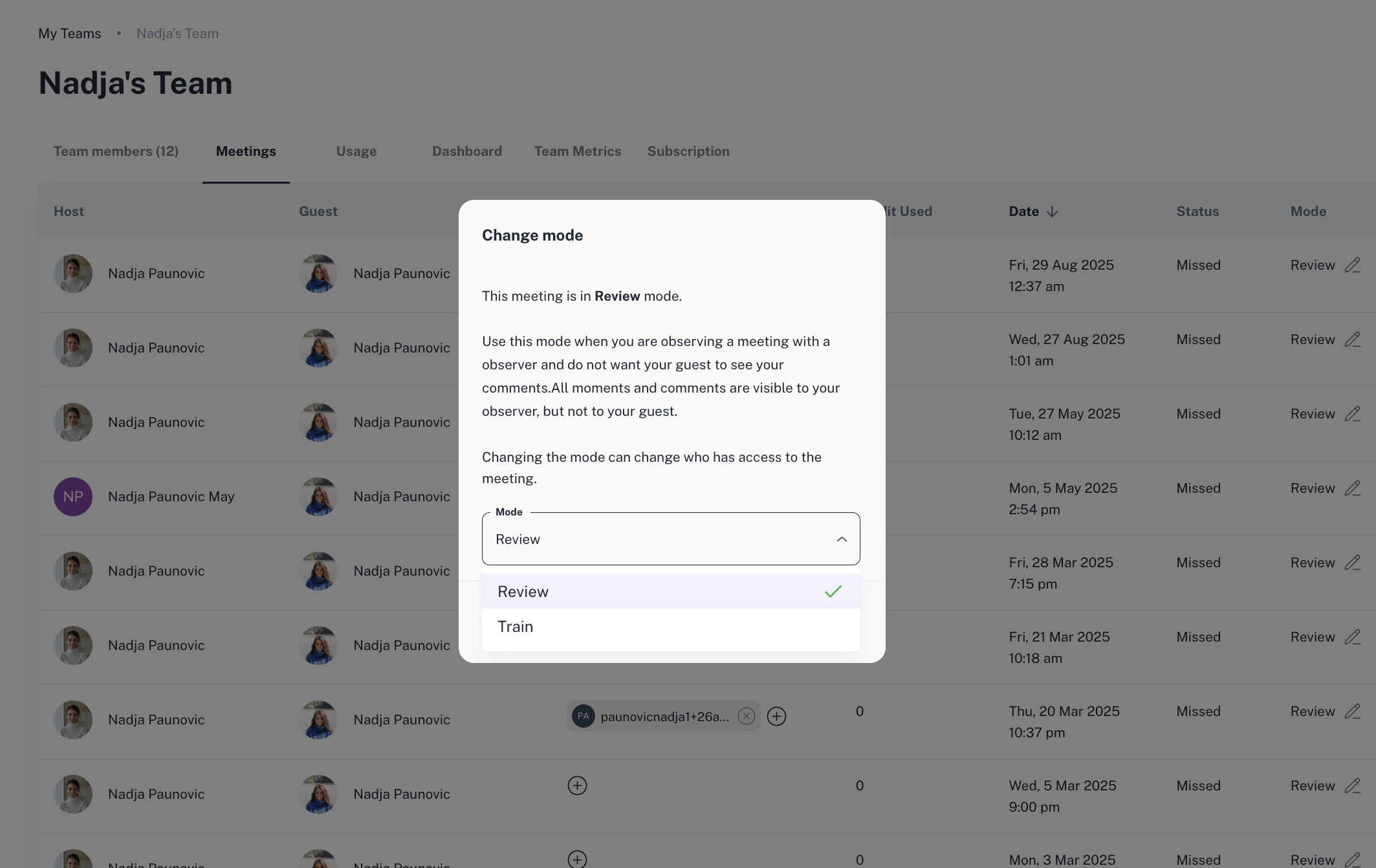
Select the new mode:
Review - only the host and observers can access the meeting analysis, feedback, and comments.
Train - all participants (host, guest, and observers) can access everything.
Click Change mode to confirm.
⚠ Changing the mode changes who can see comments and moments. If you've already added comments or moments to a meeting, changing the mode could expose them to people who couldn't see them before. Switch mode with care.