How do I set a usage cap for my team?
Last updated: May 25, 2026
Team Owners on Business and Enterprise plans can cap their team's monthly meeting usage to control spend.
A usage cap is a maximum number of meeting hours your team can use in a billing period. Once the cap is reached, team members can't book new meetings until you raise it.
Setting a usage cap
Go to My Teams > your team > Usage.
Enter your desired cap and click Save, then confirm.
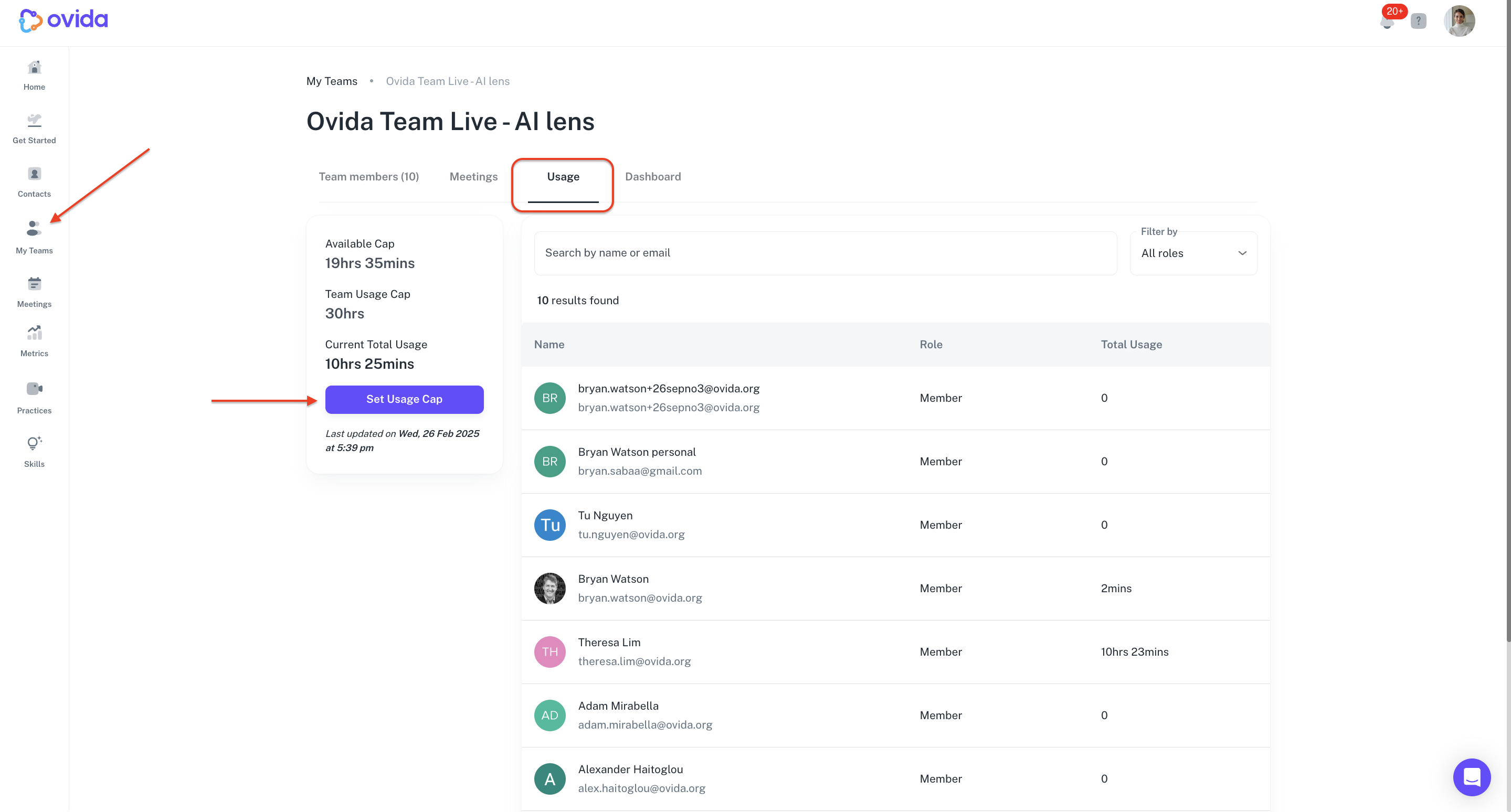
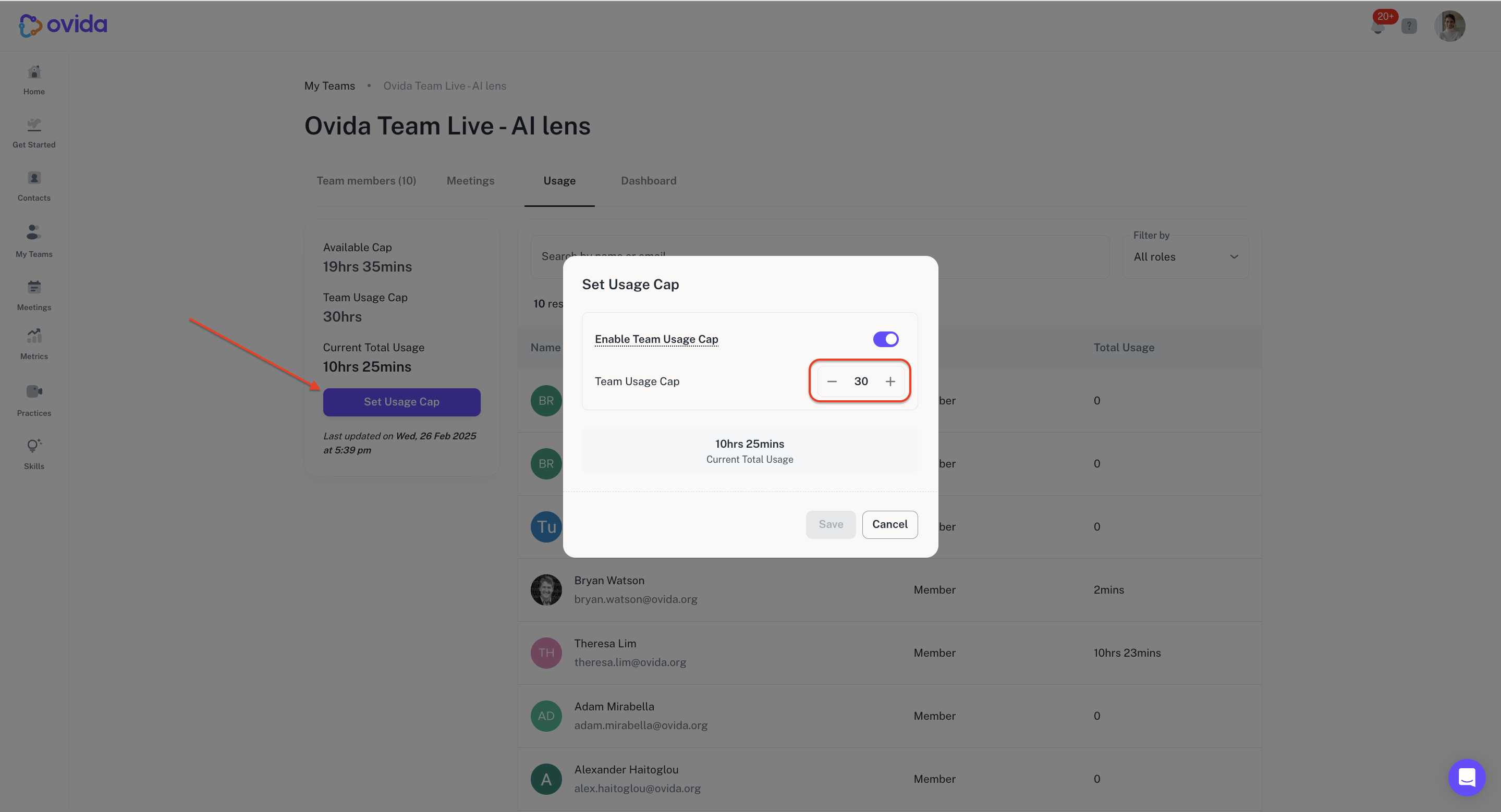
The new cap takes effect immediately.
ℹ When setting or changing a cap, the new value must be equal to or greater than the hours your team has already used in the current period.
What happens when you change the cap
Increasing the cap: Your team members immediately get access to the additional capacity and can schedule more meetings.
Decreasing the cap: If your team's current usage already exceeds the new cap, members can't create new meetings until usage falls below the cap (or you raise it again).
You can update the cap as often as you need — there's no limit on changes.
Viewing usage details
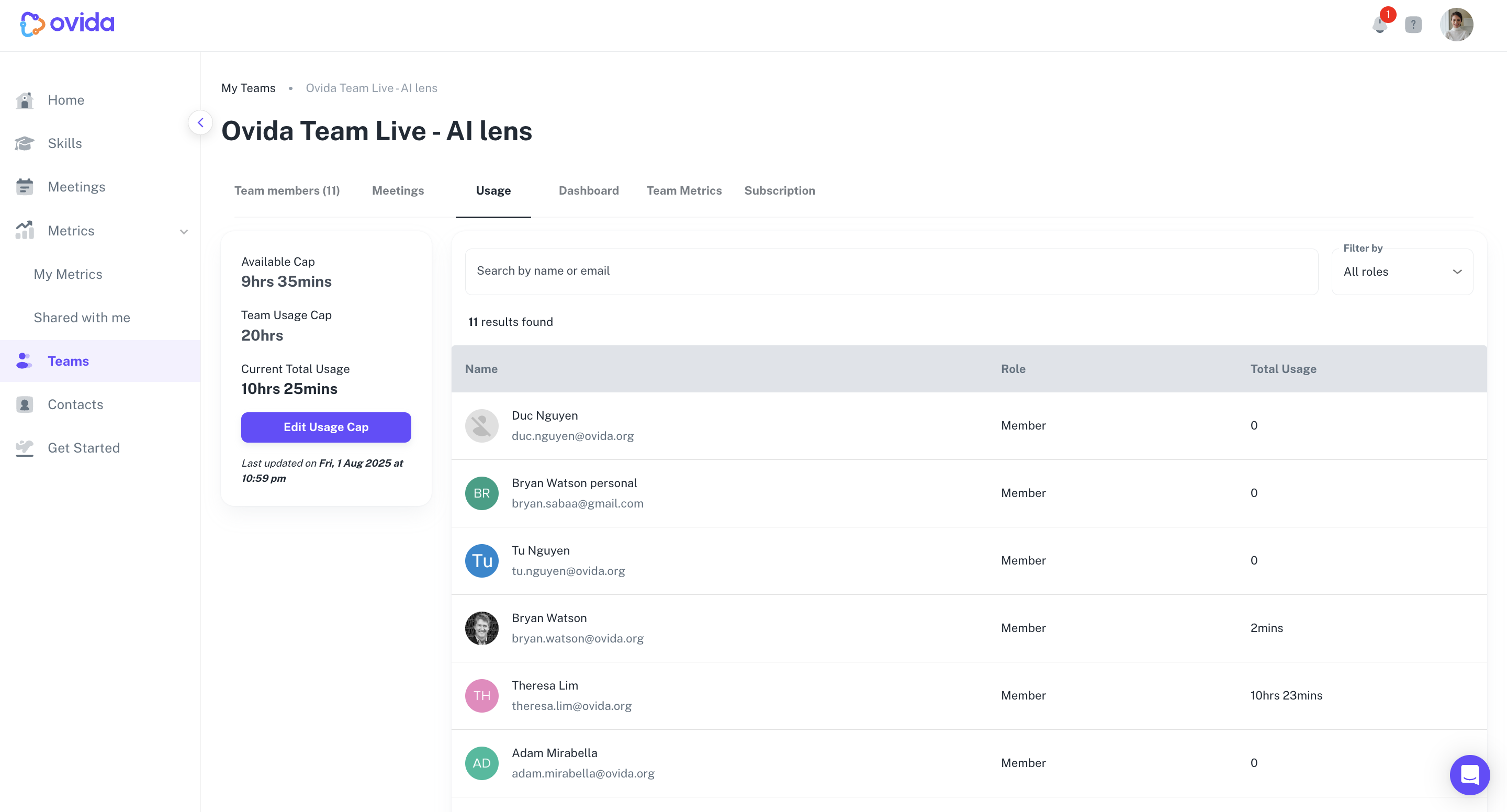
The Usage tab also shows team-wide usage and per-member breakdowns, so you can see where consumption is going.
Notifications
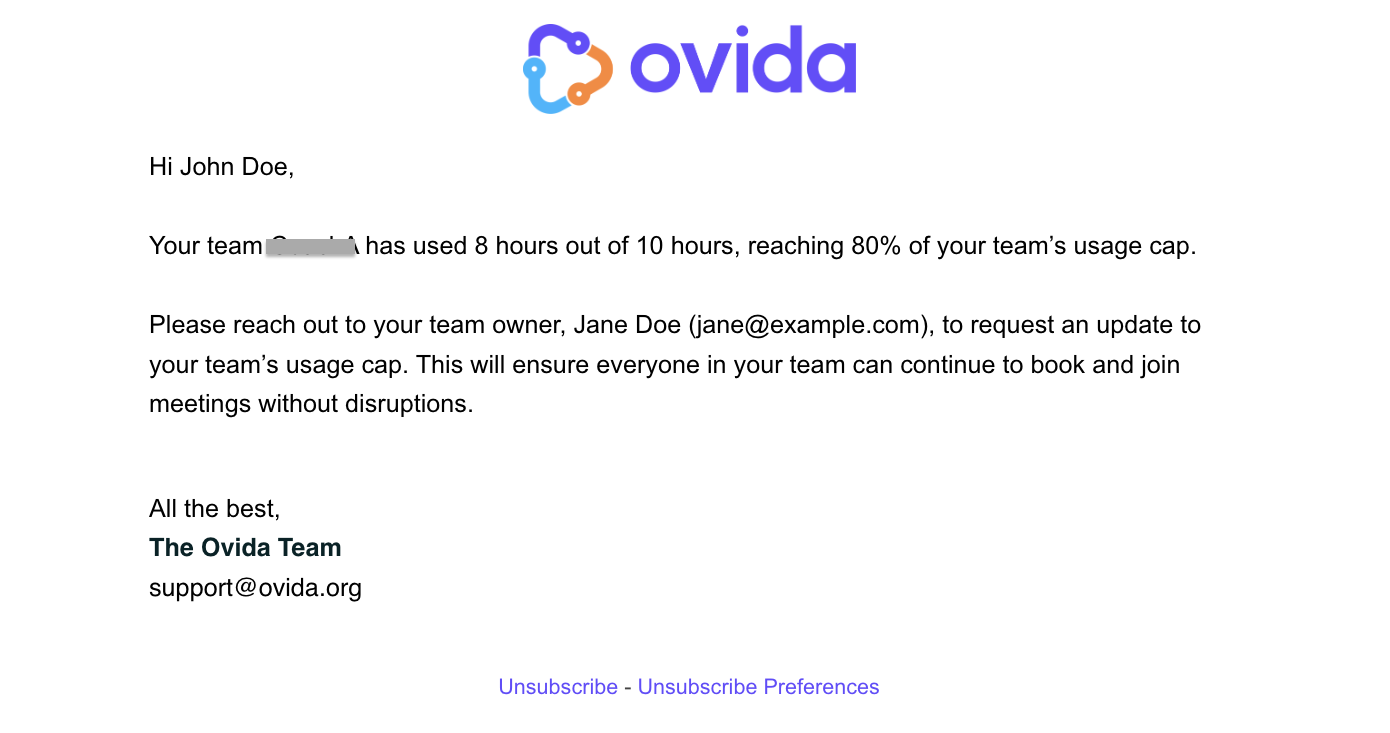
Both Team Owners and Team Admins receive automatic email alerts as your team approaches or reaches the cap. The thresholds are:
70% — heads-up that you're approaching the limit
90% — stronger signal to review usage and consider adjustments
100% — your team has hit the cap and can't schedule new meetings until you raise it
A few things to know
Usage caps are available only on Business and Enterprise plans.
Only Team Owners can set or modify the cap. Team Admins have view-only access to the Usage tab.
Usage is counted from successfully processed meeting recordings.
If team members are in a meeting when the cap is reached, they can finish, and the recording will still be processed. They just can't start new meetings.