How do I record a session live in Ovida?
Last updated: August 27, 2026
Capture a coaching session live within Ovida. No need to record externally and upload afterwards.
Live audio recording lets you record a session in real time, with Ovida automatically processing it for transcription when the call ends.
How it works
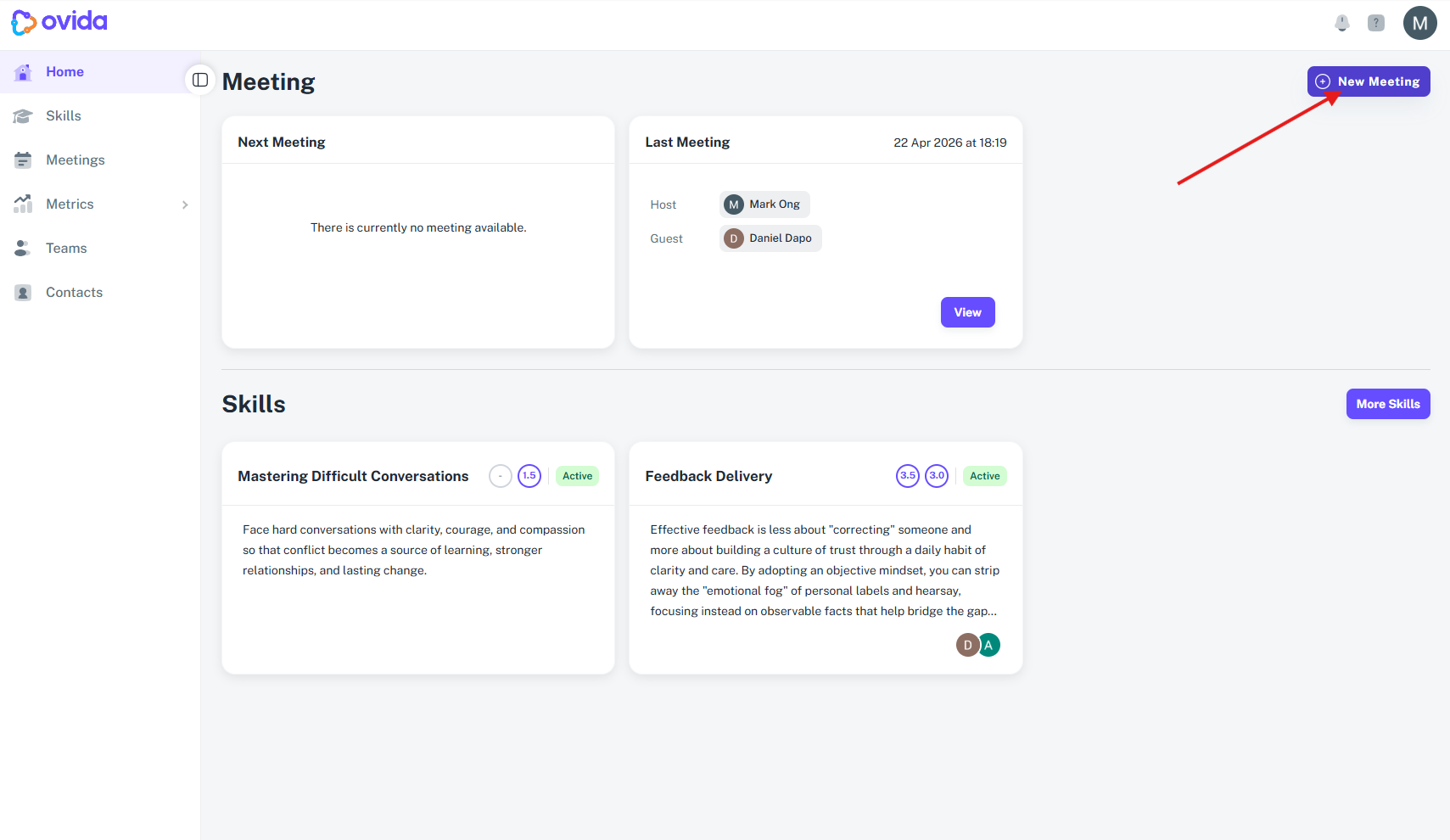
Click New Meeting.
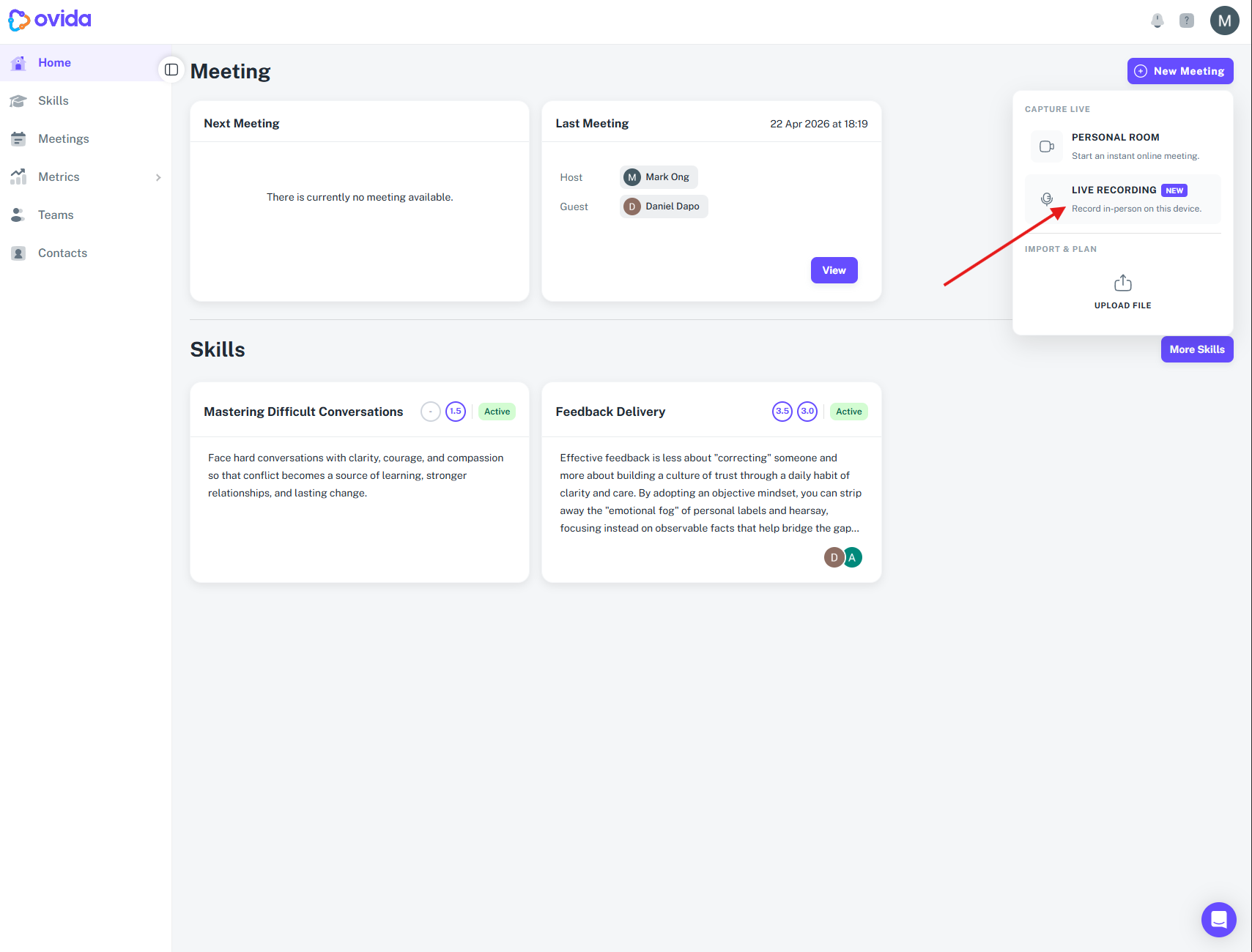
Click Live Recording.
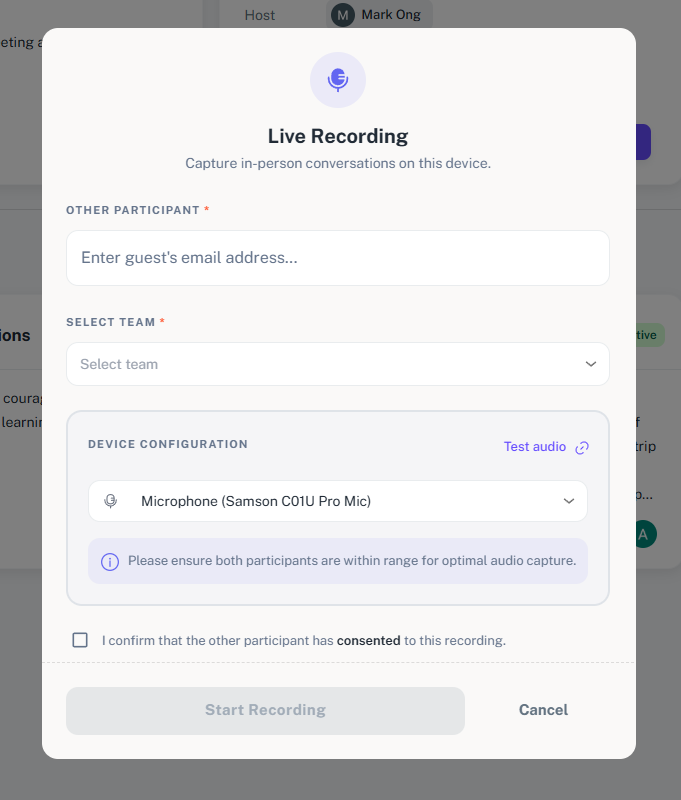
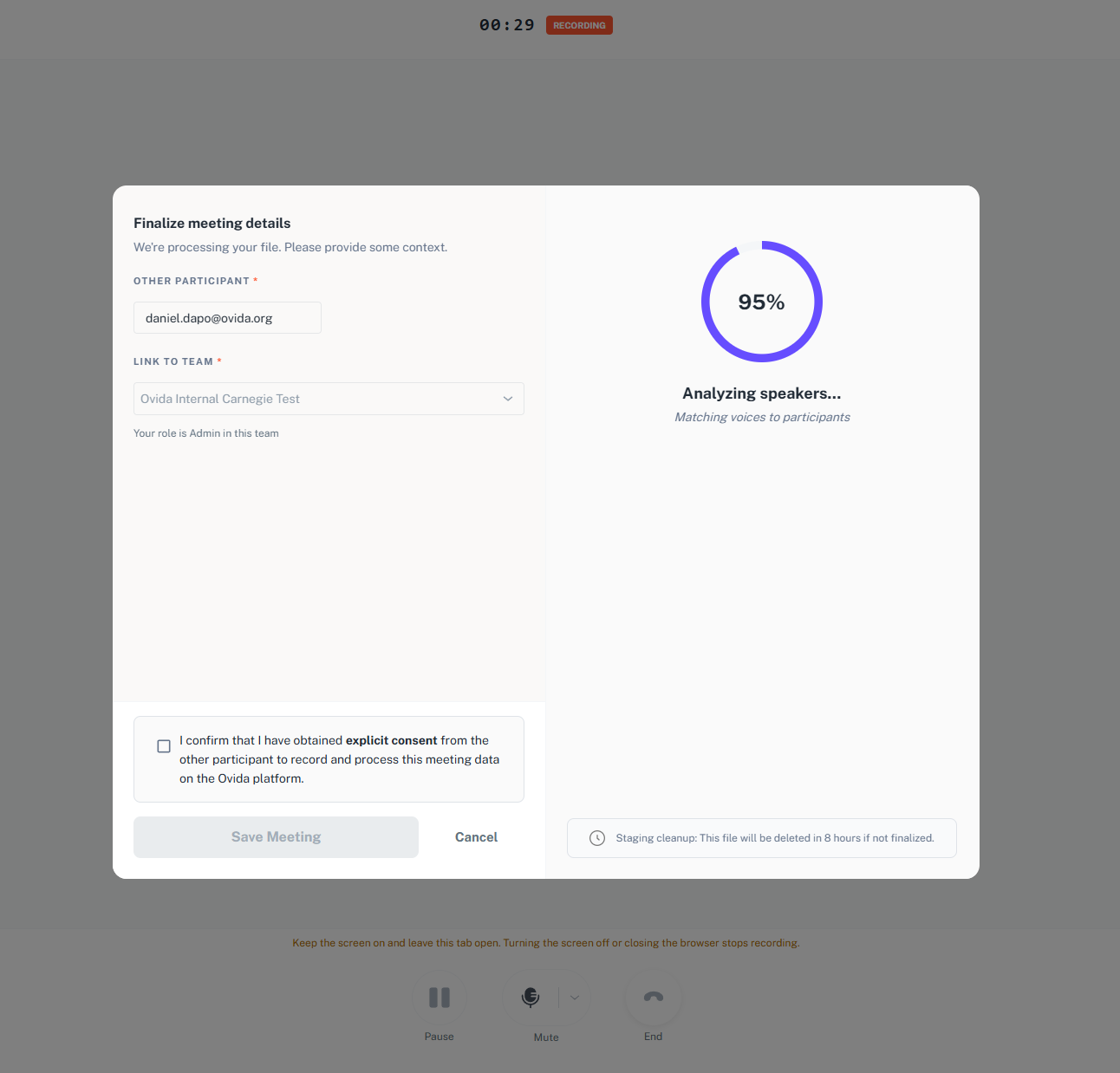
Enter the participant's email address and choose the relevant team.
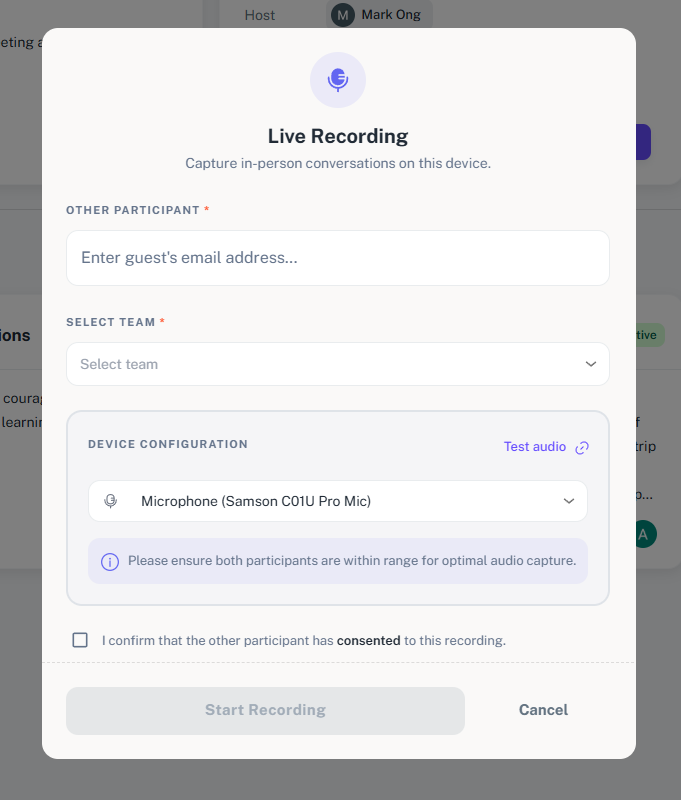
Begin the recording. The session audio is captured and uploaded securely as it progresses.
When you're done, click Finish. Ovida then stitches the audio together and starts transcribing.
What your participant sees
When you start a live recording, your participant receives an email letting them know the recording has begun. The email includes a customisable consent message you can configure in your organisation settings.
If you close your browser mid-recording
If your browser tab closes during a live recording, the session isn't lost. Ovida detects the interruption and sends an in-app notification and email with a link to return to the in-progress recording.
If there's no activity for 15 minutes, Ovida automatically finalises the recording and starts processing it.
Organisation settings
Admins can manage live recording behaviour from organisation settings:
Enable live recording — turn live audio recording on or off for your organisation. On by default.
Custom consent message — customise the consent email sent to participants when recording starts.
Live audio can also be switched off for an individual team on the team's Team activities tab, and it can be limited for the whole organisation. If Live Recording is on for your organisation but you still cannot start one, check with your team owner or admin.
Current limitations
Live audio recording supports one participant (host plus one guest).
A recording needs exactly two voices for Ovida to process it. If it finds more or fewer, it stops at the final step and offers Try again so you can go back without losing the page.
Maximum session duration is 2 hours.
Sessions auto-finalize after 15 minutes of idle time.
Transcript generation follows the same flow as uploaded audio sessions.
The in‑progress recording is visible in the app so you can return to it if needed.