How do I create my own moments in a meeting?
Last updated: May 25, 2026
Ovida's AI marks moments automatically, but you can also add your own — at the speech-bubble level, sentence level, or word level — directly from the transcript.
The AI is good but not perfect. If you spot something important the AI missed, you can mark it yourself.
Mark a full speech bubble
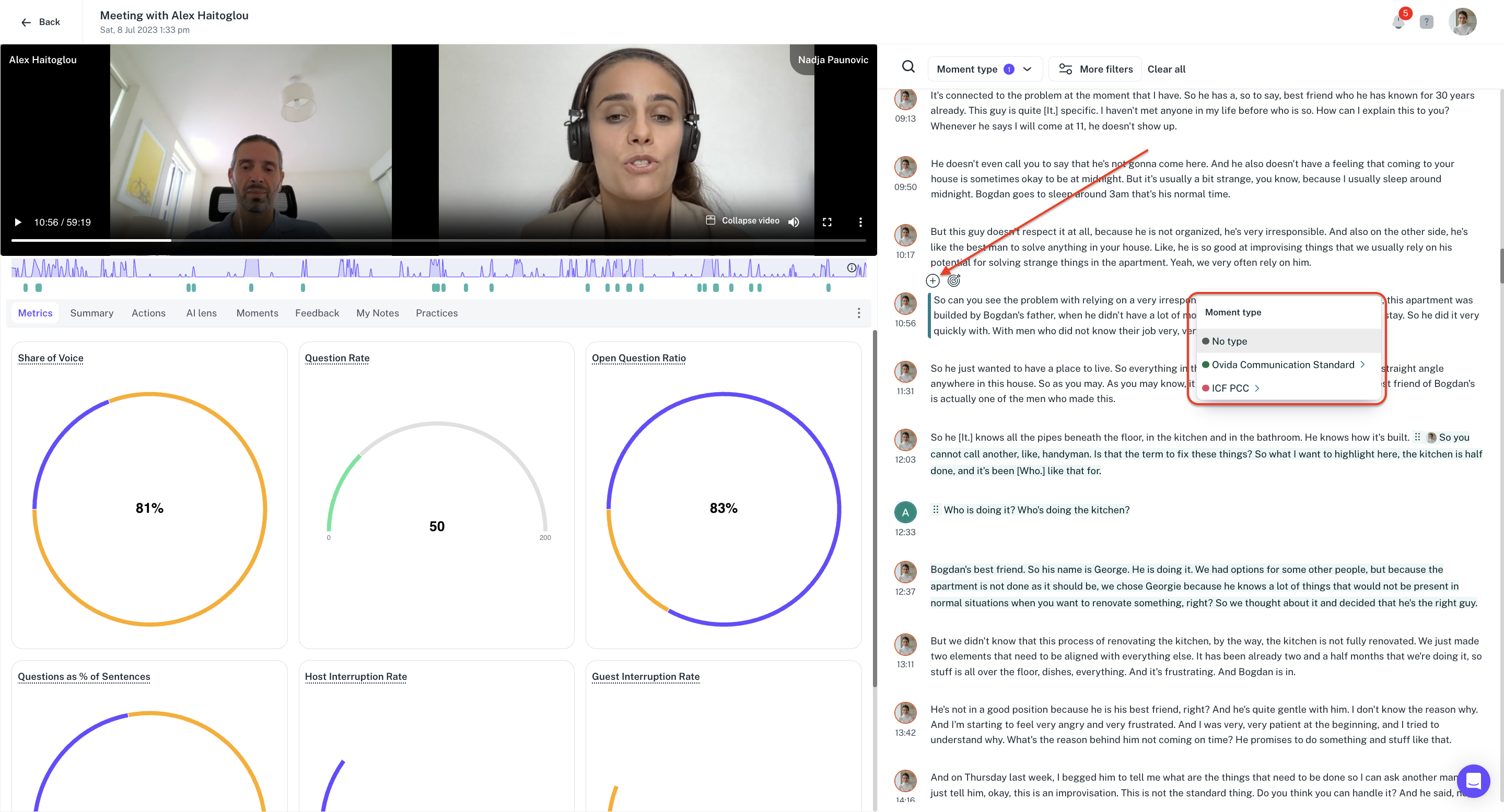
Play the video or scroll through the transcript to find the moment. Click on the speech bubble — a + button appears above it. Click the + to mark the whole speech bubble as a moment, then pick a category from the dropdown.
Mark a sentence or phrase
For a more precise moment, highlight the specific text (a sentence, phrase, or even a few words) directly in the transcript. Then pick a category from the dropdown that appears.
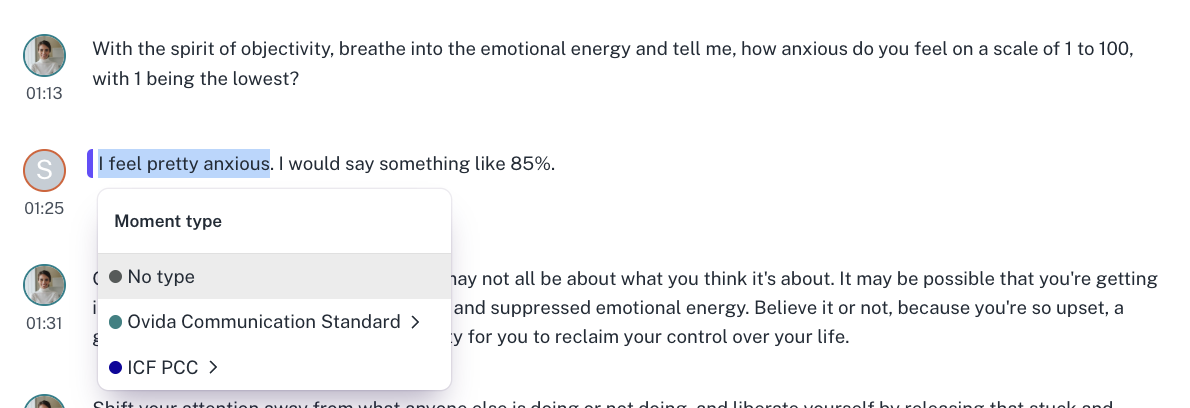
The moment is tied to the exact start time of the words you selected, so anyone reviewing it later jumps straight to that point in the video.
Use the same approach for any granularity. Whether you want to mark a whole exchange or just three words, the workflow is the same: select text, pick a category.