How does the Moments tab work?
Last updated: September 17, 2026
Find, filter, and interact with the key moments Ovida identifies in your meeting.
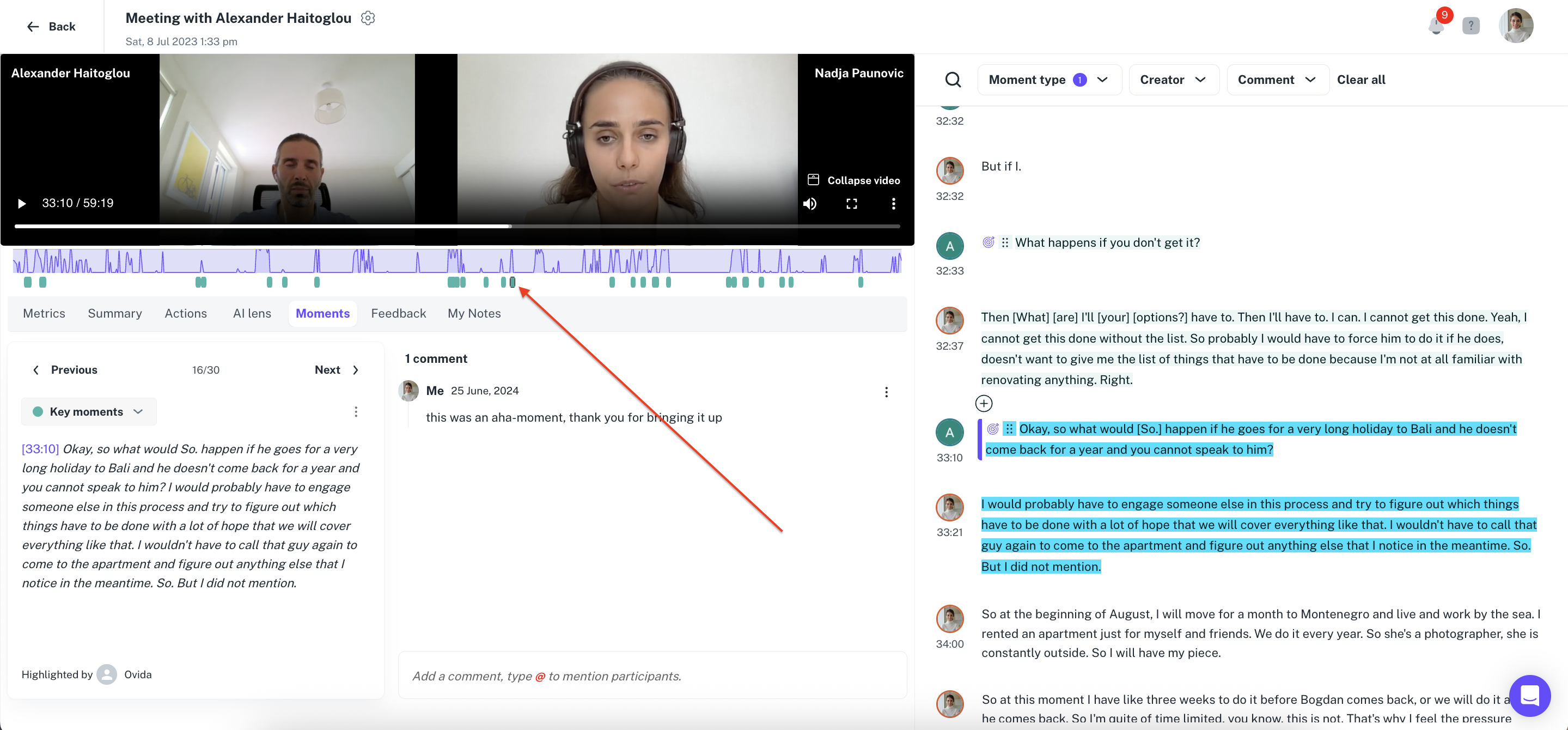
The Moments tab is where you'll find specific points in the meeting that Ovida's AI has flagged as significant. A moment might be a key turning point, a question worth noticing, or a pattern in how someone is communicating.
What is a moment?
A moment is a specific point in the conversation that's worth attention. We all recognise these intuitively, a hesitation, a shift in tone, a shared smile. Ovida's AI is trained to recognise the same cues a skilled human observer would, but at a scale and consistency humans can't match. When it identifies one, it tags it and shares it back to you in the Moments tab.
Where moments appear
Moments show up in three places in the meeting review:
Below the share of voice timeline, as small markers
In the Moments tab itself, as a scrollable list
Highlighted in the transcript on the right
By default, you'll see only key moments. Use the filter to view others.
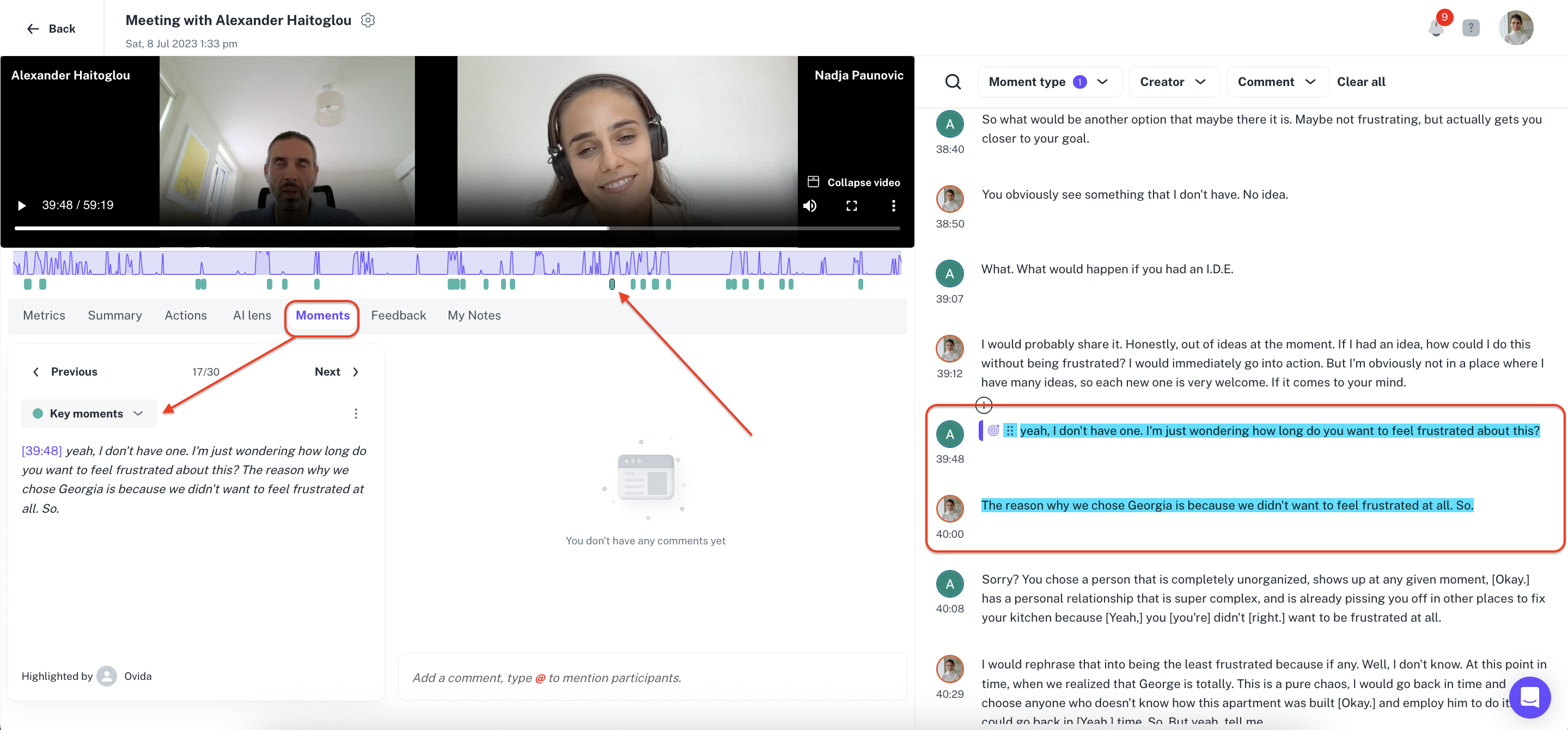
Types of moments Ovida identifies
Ovida currently identifies these moment types. The list is growing as we expand what the AI can reliably detect.
Key moment — significant turning points based on changes in personal presence across both speakers. These are the moments most worth reviewing first.
Opening moment — the start of the meeting, typically the host's invitation to set the agenda. Identified with around 95% accuracy.
Open question — a question that invites elaboration. See the moment types article for full definitions.
Closed question — a question that asks for a yes/no or short answer. Same article as above.
Stacked question — multiple questions asked in a row. Same article as above.
Absolute language — words like "always," "never," "everyone." Shown separately for host and guest. Same article as above.
AI Lens — ICF PCC coaching markers, for users on supported plans. To enable this feature, contact support.
You'll also see moments labelled No type. These are ones you created manually during the meeting (by pushing the spacebar) or during review. You can categorise these from the dropdown if you want.
Filtering moments
There are three filters available at the top of the Moments tab:
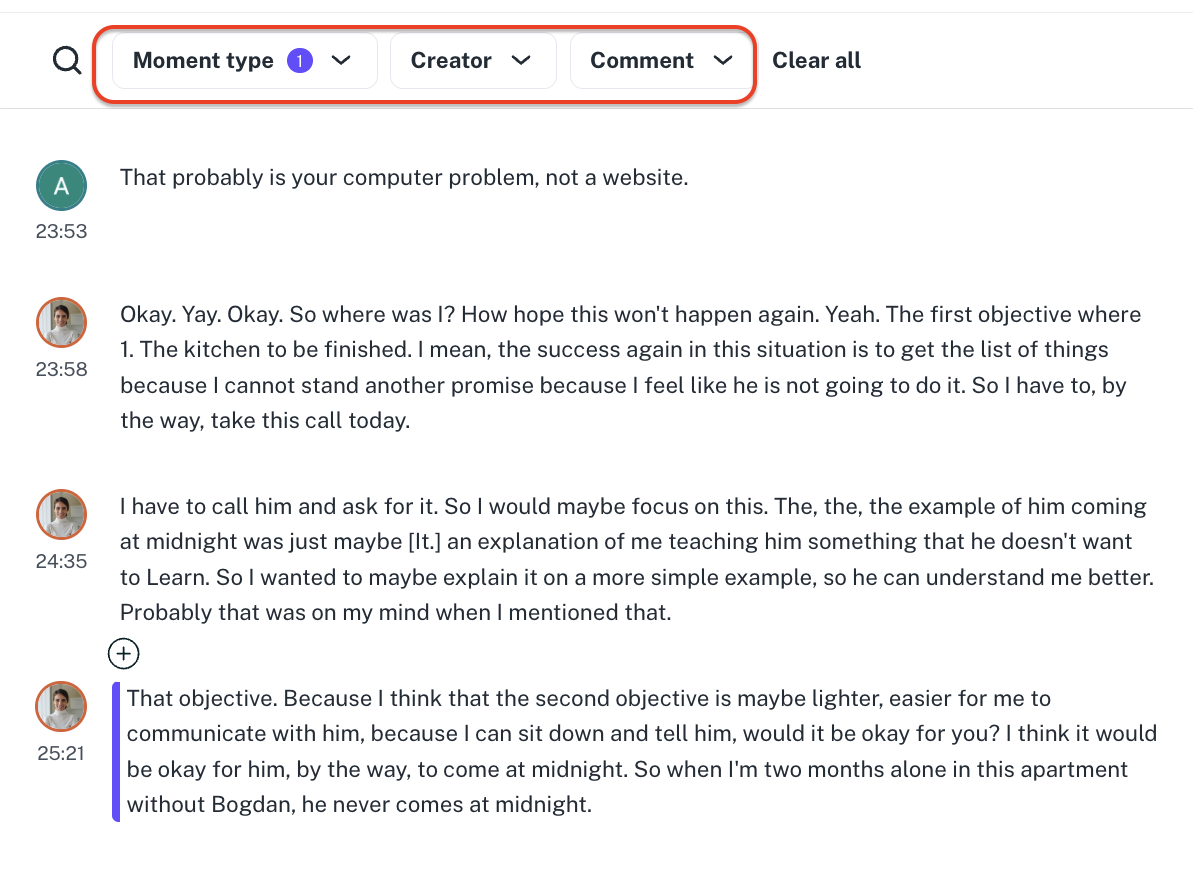
Moment type — filter by any of the types listed above
Creator — filter by who created or tagged the moment (you, another participant, or Ovid)
Comment — show only moments that have comments attached
Interacting with a moment
Click a moment in the Moments tab to open its details panel. From there you can:
Read the surrounding transcript. Clicking a moment jumps the transcript on the right to that exact point.
Comment on the moment. Useful for discussion with observers, mentors, or your future self.
Copy and share the moment, or delete it if you don't want to keep it.