How do I create a meeting in Ovida?
Last updated: September 1, 2026
There are two ways to create a meeting. Start an instant meeting using your Personal Room, or schedule one in advance for a specific date and time.
Here's a video guide for this article.
Start an instant meeting (Personal Room)
Use this when you want to meet right now. Your Personal Room link is permanent and reusable.
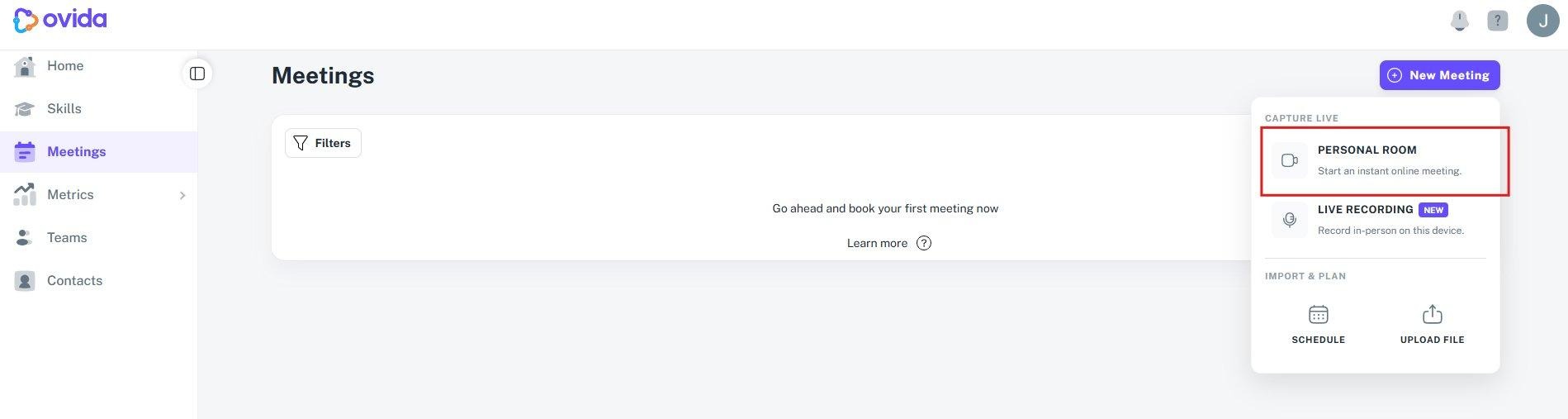
Go to Meetings from the left-hand side menu.
Click New Meeting, then select Personal Room.
Share your meeting link or invite a guest by email. Copy the link to share it yourself, or enter the guest's email address and click Send Invite.
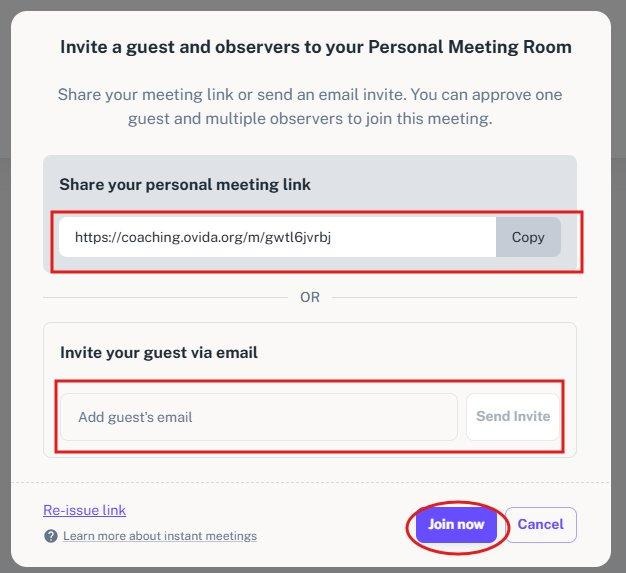
You're done. Click Join Now when you're ready to enter the meeting lobby.
Schedule a meeting
Use this to book a meeting for a specific date and time in advance.
Go to Meetings from the left-hand side menu.
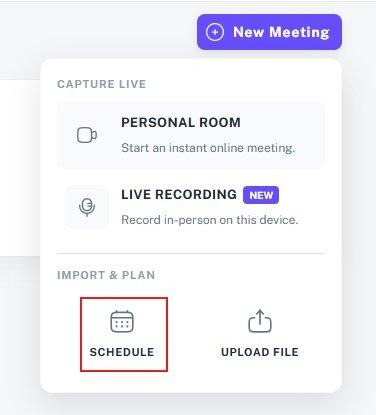
Click New Meeting, then select Schedule.
Fill in the meeting details: Team, date, start time, and end time.
Add your guest's email address. Search for team members to add as Observers if you want any.
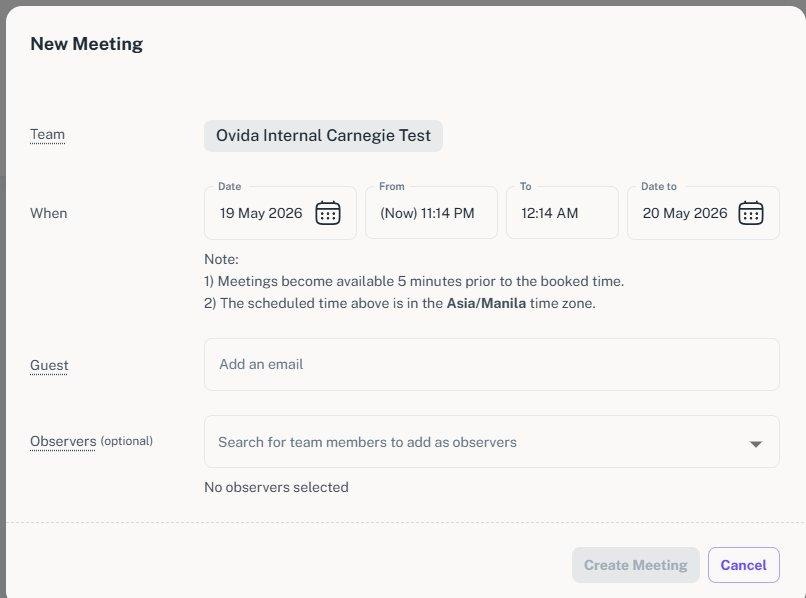
Click Create Meeting to confirm.
Heads up: Meetings become available 5 minutes before the start time. All times are shown in your local time zone.