How do I enable AI Lens for my team?
Last updated: May 25, 2026
AI Lens needs to be turned on at the team level by Ovida, then individual user roles within the team can be granted access.
AI Lens delivers near-human-level feedback on your meetings using various analysis rubrics. It's a paid feature that requires two things to be in place for a user to see it:
AI Lens is enabled for their team
Their user role has been granted access to AI Lens
Step 1: Enable AI Lens for your team
AI Lens isn't enabled by default. To check whether it's enabled for your team:
Go to My Teams > Roles and Permissions.
If the AI Lens checkboxes are greyed out, AI Lens isn't enabled for your team.
To request it, email support@ovida.org.
Step 2: Grant access to user roles
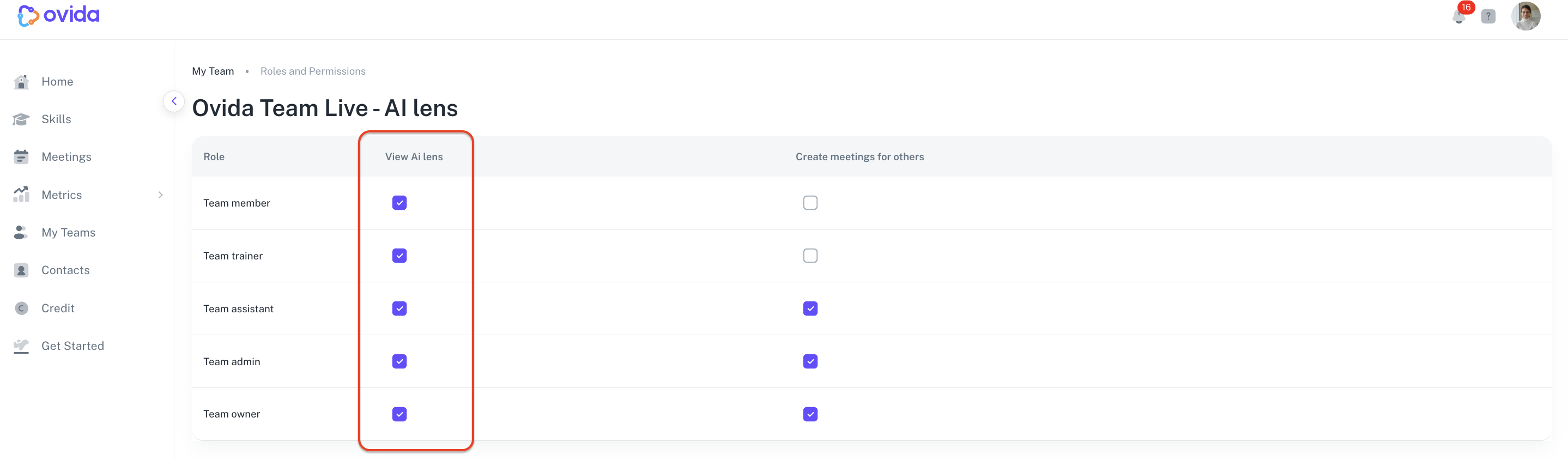
Once AI Lens is enabled for your team, you control which user roles can see it.
Go to My Teams > Roles and Permissions.
Tick the AI Lens box next to the user roles you want to have access.
Each user in your team is assigned a role. Users in roles with the AI Lens box ticked will see AI Lens output on their meetings.
A few things to know about AI Lens processing
AI Lens processing only runs on meetings allocated to a team that has AI Lens enabled. Make sure the meeting is allocated to the right team.
AI Lens runs on completion of a meeting. It won't backfill past meetings automatically.
For older meetings that pre-date AI Lens being enabled for your team, contact support@ovida.org. We can run AI Lens manually for those.