Your new Settings area
Last updated: August 26, 2026
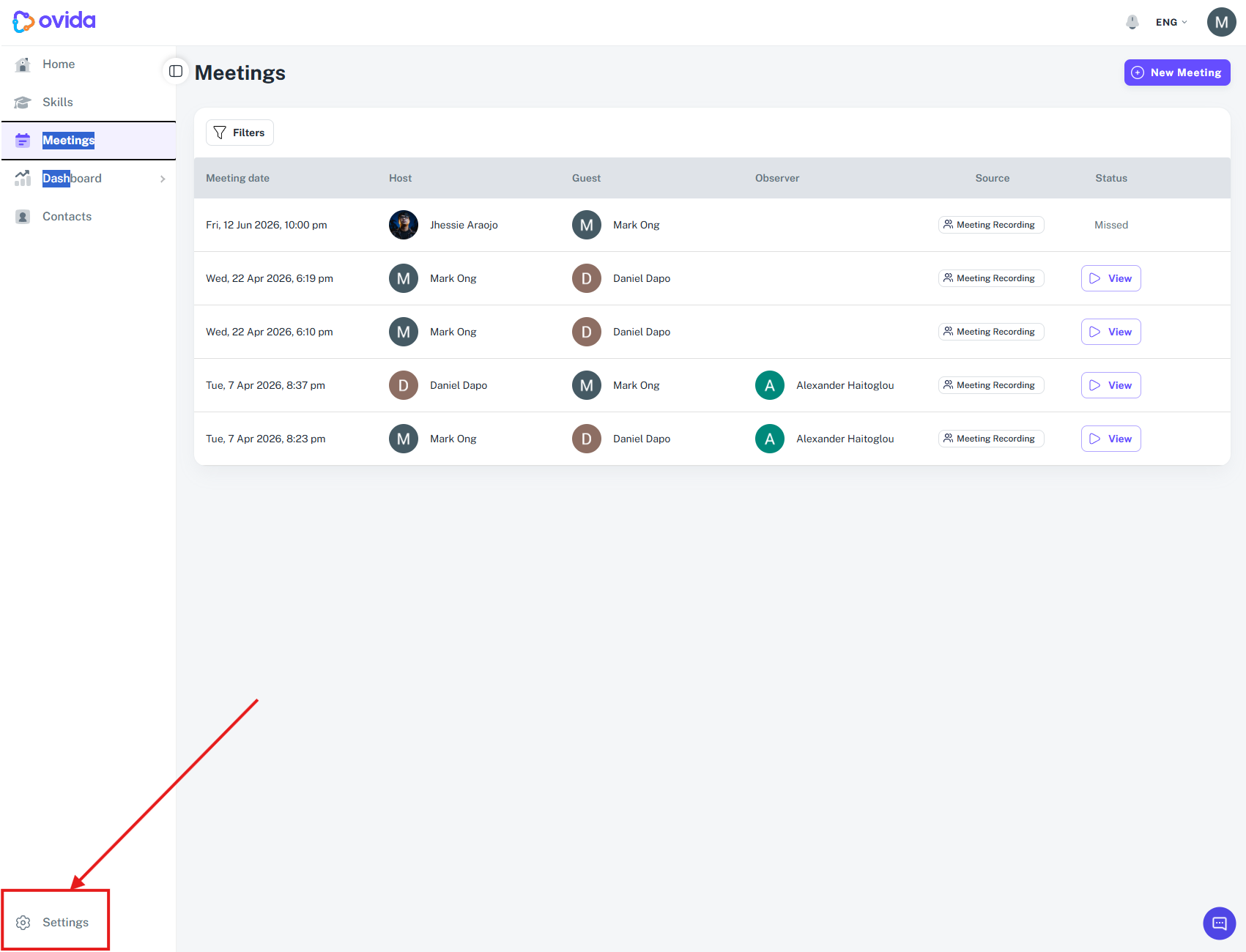
Your settings now live in one consolidated place, reached from a dedicated Settings button at the bottom of the left navigation sidebar. Your teams have moved here too, and your profile picture and account menu now sit alongside Settings in the same corner.
Getting there
Where your profile menu lives
Your profile picture sits at the bottom of the left sidebar, next to Settings. Select it to reach your profile, the app version, and Log out. It used to sit in the top-right corner, and everything inside the menu is unchanged.
Click the Settings button at the bottom-left of the sidebar.
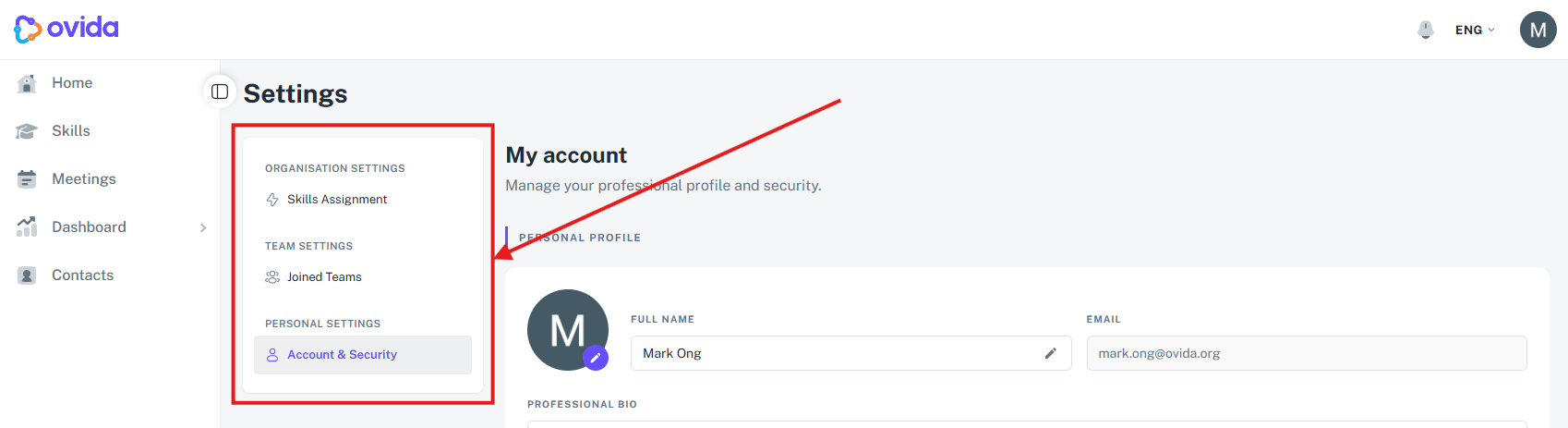
The Settings page opens with sections including My Account (Account & Security), Organization (Org Settings, Skills Assignment), and My Team. What you see depends on your role.
Organisation Settings Organisation-wide options. Visible to people with an organisation role.
Team Settings Options that apply to a team you manage, such as members, roles, and permissions.
Personal Settings Your own account options, such as your profile and preferences.
The notice on your Home page
A slim one-line notice at the top of your Home page explains what has moved. One notice covers Teams and the Skill Library, with Joined Teams and Skill Assignment links that take you straight to the matching tabs in Settings. A second notice points out that your profile picture and account menu are now at the bottom-left, next to Settings. Select the word avatar in that notice to open the menu in its new place. 🔍 VERIFY: confirm the notice says avatar rather than profile picture.
Select Got it, dismiss or the X to hide a notice permanently. If you leave it, it disappears on its own about 30 days after release. You only see these notices if you were using Ovida before the change, so people joining now will not.
Finding your teams
In Settings, open My Team → Joined Teams.
You'll see every team you belong to — whether you're an owner, admin, or member.
Click a team to open its details. What you can do there depends on your role: owners and admins can manage the team's settings, while members see basic details such as the team name and owner.
FAQ
Where did "My Teams" go? It's now under Settings → My Team → Joined Teams.
Why can't I edit a team? Editing a team's settings requires owner or admin access for that team.
Where did the Skill Library go? It's now under Settings → Organization → Skills Assignment. Only Team Owners and Team Admins can see it.
Where did my profile picture and Log out go? They are at the bottom of the left sidebar, next to Settings.